Load Pods
Once a pod has been created, you need to load the Pod to make it available to use in your document templates.
Working with Pods involves the following three main tasks:
- Use PodsUse Pods
After you've created a pod, you must load it so you or others can use it.
Step 1 - Open a New Document
Open a new document or document template. Click the Load Pods icon under the Blueprint Manager tab:
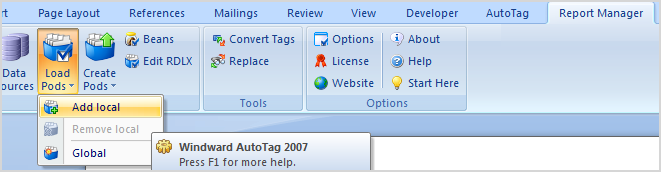
You have two options:
- Adding a local Pod is just for this individual report. You are the only person who will be able to use this pod.
- Adding a global Pod is for every document you open. It is added to AutoTag itself so you and anyone else using AutoTag can access that Pod.
The pod file itself is not put in the template, but the list of files attached are read from disk and the PODs in them are displayed in the POD pane. Global & local is a way to tell a template what POD files to list in the POD pane.
Global is a list of POD files (including directories) where those files are read and the PODs listed in the POD pane for every document template.
Local is files read/displayed only for the document templates that have those filenames attached.
In this example, you will add a local Pod.
Step 2 - Open the Add Local Window
Once Add local is selected, a window with any available Pods is displayed:
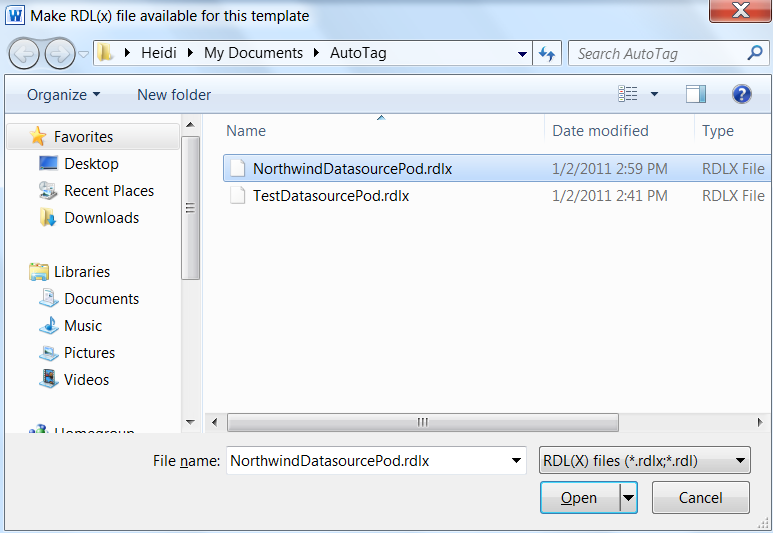
Select the Pod you just created. In this example, it is the NorthwindDatasource Pod.
Click Open.
Step 3 - Verify that the Pod has been Added
Click the Pod Bin icon:
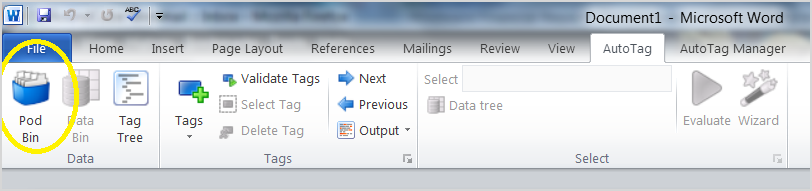
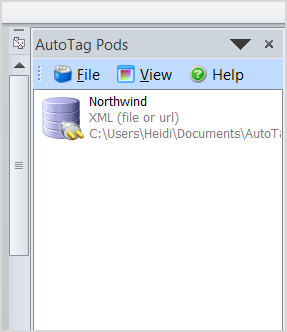
Your Pod now appears in the Pod Bin: