Edit Pods
3 min
Once you’ve created a pod file, you can edit it to change its contents.
Step 1 - Select a File
Click the Edit Pod file button under the AutoTag Manager tab.

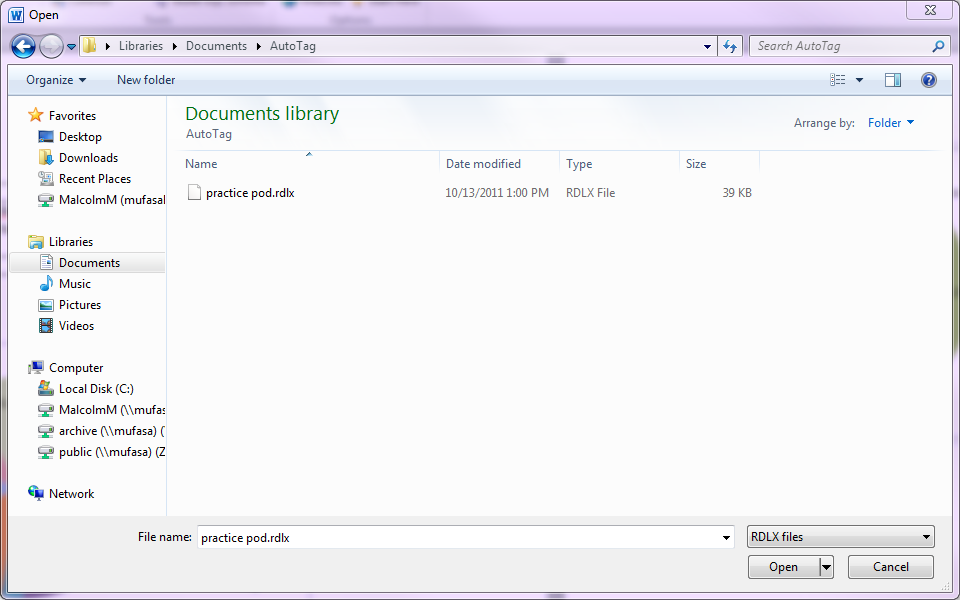
Choose the pod file you want to edit from the dialog box displayed—in this example, we’ll select the “practice pod” file.
Step 2 - Edit the File
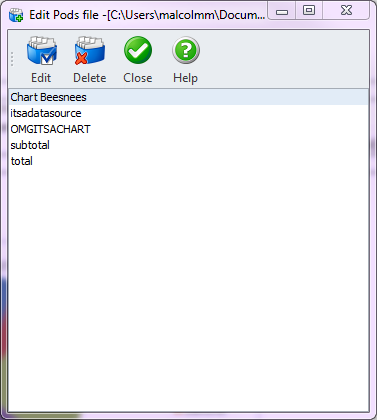
Once you’ve selected the pod file you want to edit, a window listing all the pods that file contains is displayed.
Step 3 - Change and Delete Pods
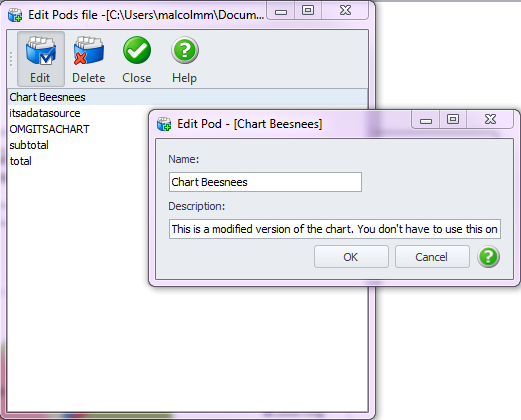
From the pod editing window, click the Delete button to remove a pod from the file, or click the Editbutton to change the name and description of a pod.
Once you’ve finished editing your pod file, click the Close button to go back to editing your template.