About Equations
For a full list of equation functions, see Equation Functions.
AutoTag supports equations and function for Out tags in Microsoft Office Word and Excel. This allows you more options in manipulating your data. For example, you can now:
- work with more complex mathematical functions, like taking the the square root of a number
- add or subtract from a date to adjust for time zones
- easily add a time stamp that is set when the report is generated
- have your equation evaluated as you type
- import custom functions that will appear in the AutoTag interface
In the following example, we start with a blank Word Document and end up with a template (Equations_Final.docx) that uses the new function Equations feature. Created in Microsoft Word 2007, using AutoTag Max 10.0.0.0.
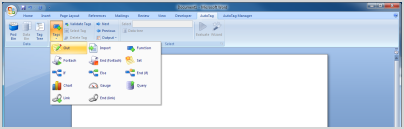
Open a new Word document. Create an Out tag in AutoTag by selecting the Out button in the Tags menu.
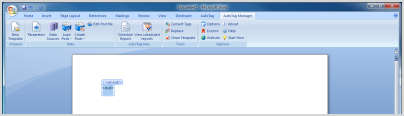
Open the Tag Editor for new Out tag by double-clicking it.
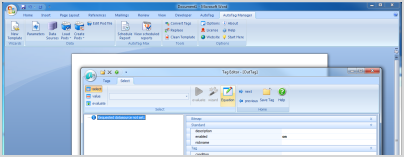
This will bring up a new window. Click on the equation button to open the Equation Editor.
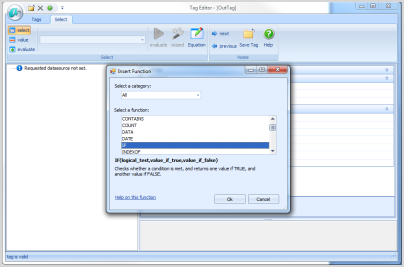
Select the function you would like to use. In this case, we will select the CONTAINS function and then click OK.
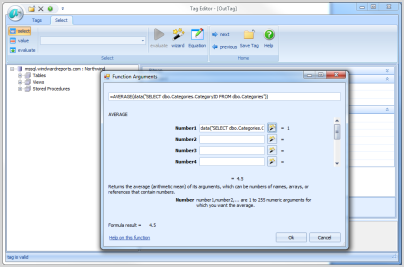
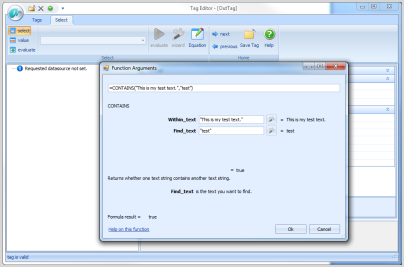
You are now presented with the ability to fill in the arguments for the function. Note how the arguments, the function, and the equation results are updated as you work.
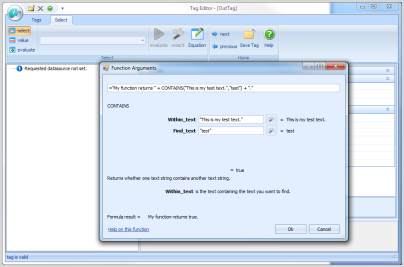
You can also make modifications directly in the formula at the top. This updates the results accordingly.
If you are connected to a data source, you can use that data for the arguments as well. In this case, I've connected to the Windward public SQL Server
- server: mssql.windward.net
- username: demo
- password: demo
- database: Northwind
Click on the wand icon next to the argument to select your data.
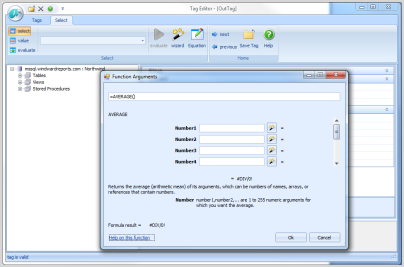
Select the data you would like using the XPath Wizard. Click Ok when you are done and you can see the new result of the formula.