The Review Experience Utility Panel
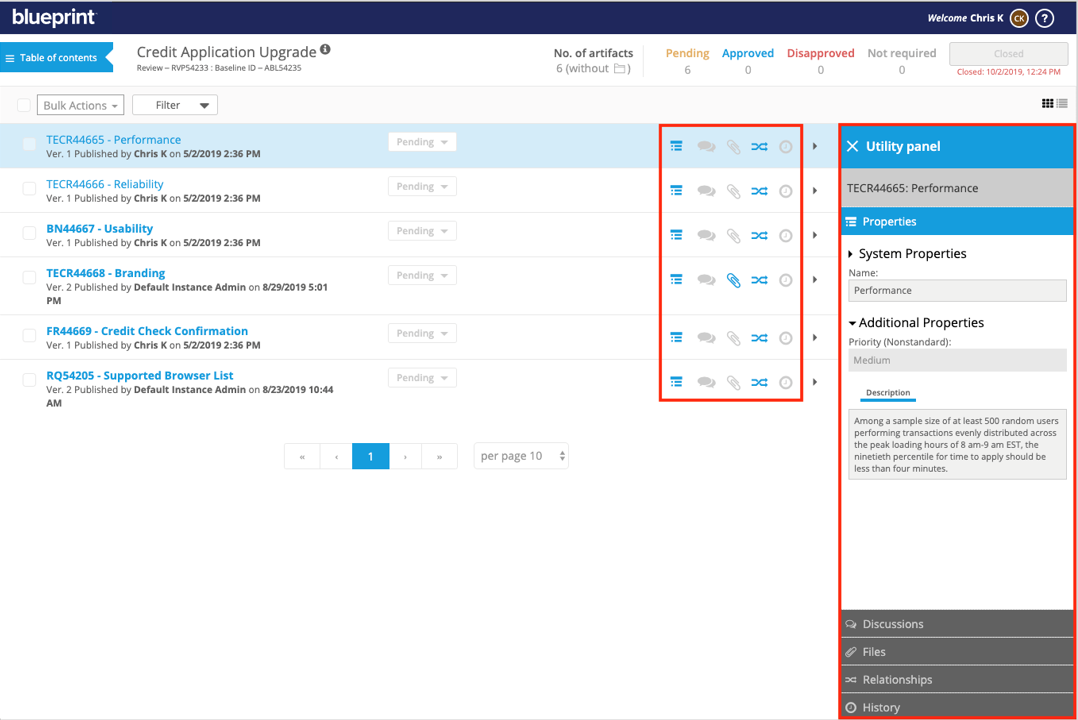
In the Review Experience, you can view an artifact’s discussions, downloadable files, relationships, version history, and additional properties in the The Utility Panel.
The indicators are located on the right side of the artifact header and are enabled (blue) when there is information available. Clicking any of the indicators opens the corresponding tab in the Utility Panel.
Discussions Tab
Within the Discussions tab, you can make comments, start new discussions, or reply to existing discussions. All comments and discussions become accessible to other participants, as well as the Review manager, as soon as they are posted.
To mention someone directly, you can use the @-mention functionality; typing @, followed by a system user name, sends an email notification to that user once the comment is posted. See Discussions and Adding Comments in the Review Experience for more information.
Files Tab
Within the Files tab, you can view and download any associated files.
Relationships Tab
Within the Relationships tab, you can click the name of any related artifacts to bring up a Preview Pane that will display their properties, discussions, files, relationships, and history. An Impact Analysis can also be accessed directly from this tab by clicking the Analyze Impact button.
History Tab
Within the History tab, you can click any historical version of the artifact to bring up a Preview Pane that will display the artifact’s properties, discussions, files, and relationships, as they were at that point in time.
Sub-artifacts (individual shapes within a diagram, for instance) also have their own properties, discussions, files, and relationships. As you click different artifacts and shapes within diagrams, you will see the contents of the Utility Panel update in real time.