The Main Content Area
When you select an item in the Explorer, it is displayed in the main content area, where you view and configure base artifact details.
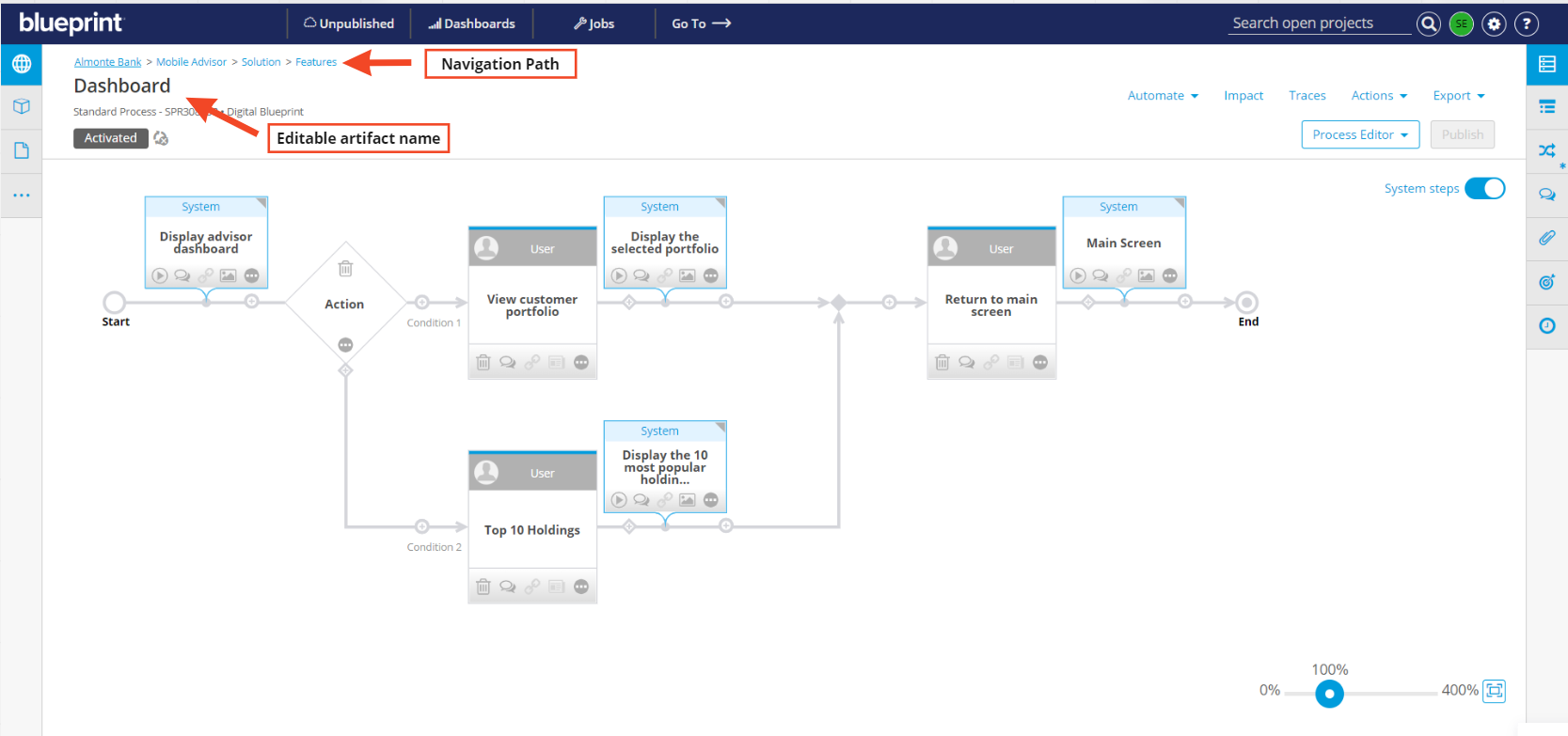
The navigation path at the top indicates which project path the open artifact belongs to. Various parts of the path are clickable, depending on whether you have access to those parts of the project.
The artifact name is also displayed at the top and is editable. Click it and edit inline as desired.
There can also be indicators beside the artifact name that displays the status of the artifact. For more information, see the Status Indicators section.
The Artifact Toolbar
The main content area also contains the artifact toolbar. The buttons in the artifact toolbar change (they may be greyed out or not visible) depending on the type of artifact loaded and what its current state is.

The following table indicates all the possible buttons in the Artifact toolbar and the actions performed with each:
Button | Actions |
|---|---|
| Generate stories from tasks, Generate stories, Generate tests, or convert to intelligent process |
| Perform an impact analysis |
| Manage traces for the artifact. |
| - Move the artifact to another location in the project - Copy and publish the artifact - Reuse the artifact - Save all changes in the artifact - Discard all changes in the artifact - Refresh the artifact - Delete the artifact - Change the artifact type - Add artifact to a Review, Baseline, or Collection - Generate Document for artifact |
| Export the artifact to Word or PDF |
| Switch between the Descendants View, Process Editor, and Walkthroughs in the main content area |
| Publish all changes made in the artifact |


The artifact toolbar for process artifacts has more buttons. For more information, see the About the Process Editor article.
The Main Header
The main header is above the main content area.

- Unpublished displays all the artifacts that you have modified but not yet published.
- Dashboards will display dashboards for analytics and metrics of selected scopes within Blueprint.
- Jobs displays the Jobs list. For more information, see JobsJobs.
- Go To enables you to navigate directly to an artifact using the artifact ID.
- Search enables you to search for an artifact using the artifact name or information in the artifact’s textual properties.
- User Icon allows you to log out and change your password.
- The Gear takes the user to the Admin Portal.
- Help Icon gives you access to all Blueprint help resources like interactive tours, slideshows, FAQs, and this online help. There are also links that allow you to leave feedback on Blueprint, register for Blueprint Connect, or open a ticket with the Blueprint support team.