The Explorer
The Explorer is the panel on the left side that allows you to browse and navigate within your projects and folders. It contains a hierarchical list of all the folders and artifacts in your project.
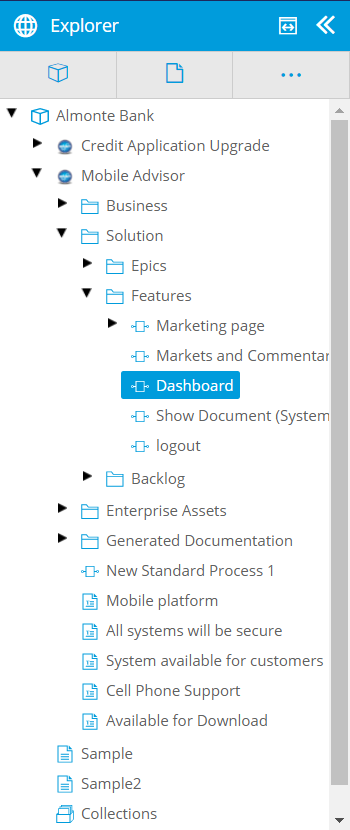
When you select an item in the Explorer panel, the main content area is automatically refreshed to display the item.
To maximize the Explorer, click the maximize button ( ). Click it again to return the Explorer to its default size.
Click the Explorer button ( ) to slide the Explorer to the side and maximize your working space in the main content area.
You can also drag and drop artifacts and folders in the Explorer to optimize how you organize your workspace. For more information on dragging and dropping artifacts in the Explorer, see Move Artifacts.
The Main Toolbar
The main toolbar is located at the top of the Explorer and enables you to perform the following actions:
Button | Actions |
|---|---|
| Open and close projects |
| Create new artifacts |
| More actions. Includes importing files, bulk updates, publish or discard all changes, refresh projects, and close projects |


These global actions remain visible and accessible even when the Explorer is closed. For more information regarding Global Actions, see Global Actions.