Manage Sub-Artifact Types
2 min
Project Administrators with the corresponding privileges can view and manage Sub-Artifact Types at the project level.
To view Sub-Artifact Types in the Administration Portal, users must have the "View Project Configuration" privilege in their Project Administration role. For more information on Project Administrator Roles, see the Manage Project Administration Roles article.
To access and manage Project Artifact Types:
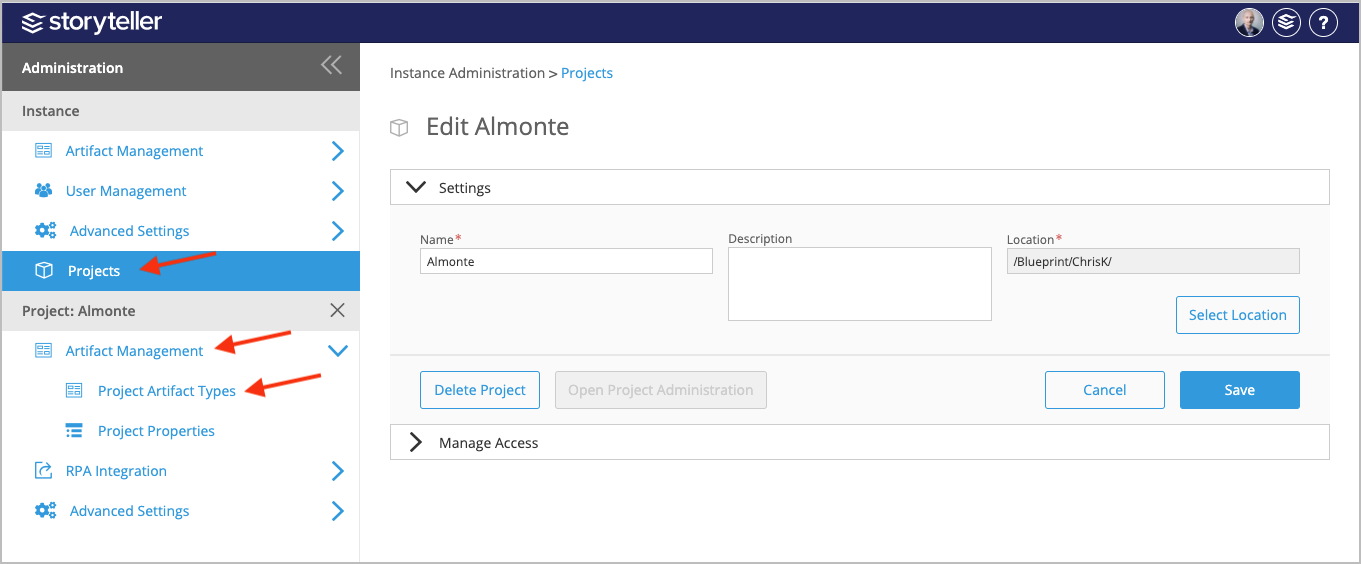
- In the Administration Portal, click Projects and select the project you want to manage Sub-Artifact Types for. For information on how to access the Admin Portal, see About the Administration Portal.
- Under Projects, click Artifact Management and select Project Artifact Types.
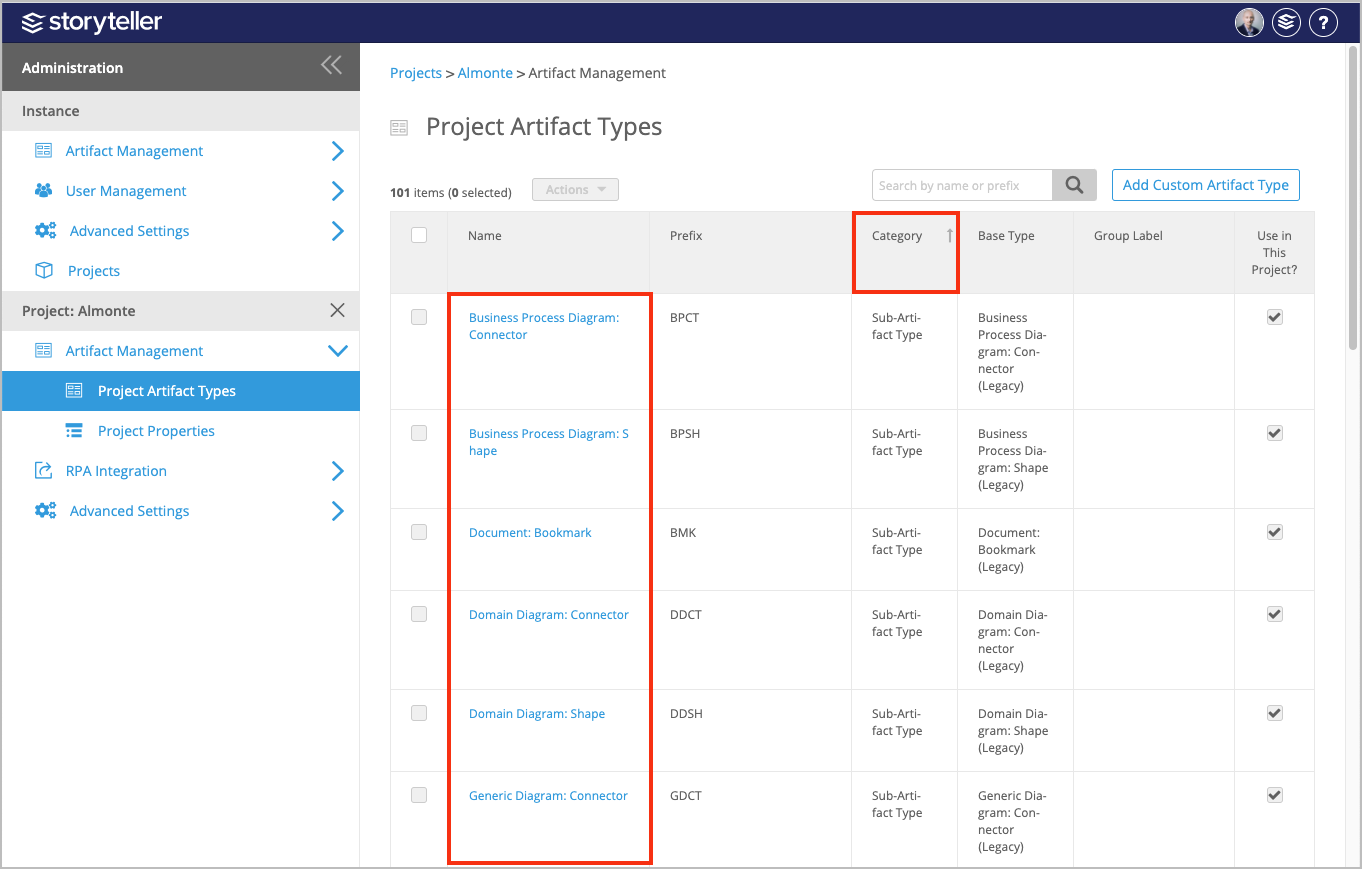
- The Project Artifact Types page displays all the Project Artifact Types in your instance. Click the Category column to sort the artifact types available and locate the Sub-Artifact Types. Click a Sub-Artifact Type in the Name column to see its details. You can search for Sub-Artifact Types by name or prefix using the search bar in the upper right corner.
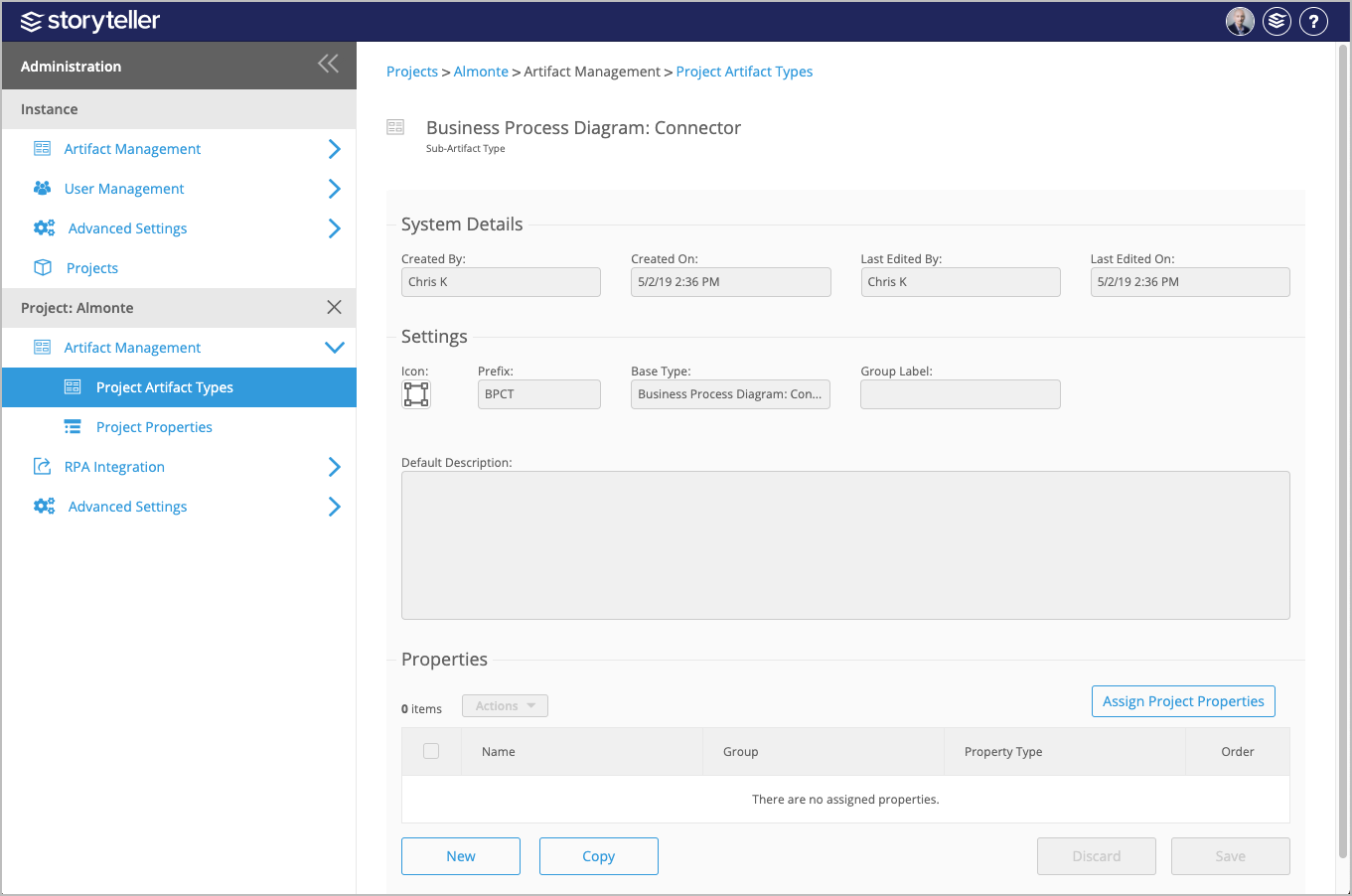
- The page displayed provides all the details for that Sub-Artifact Type including:
- Who it was created by and when
- Who it was last edited by and when
- Its icon, prefix, base type, and group label
- Its default description
- All Project Properties assigned to that artifact type
For information on how to complete further actions regarding Standard Artifact Types, click one of the following links: