Create a New Project
1 min
To create a new Blueprint project:
- Click Projects in the Administration Portal. For information on how to access the Admin Portal, see About the Administration Portal.
- In the Projects page displayed, click Create Project.
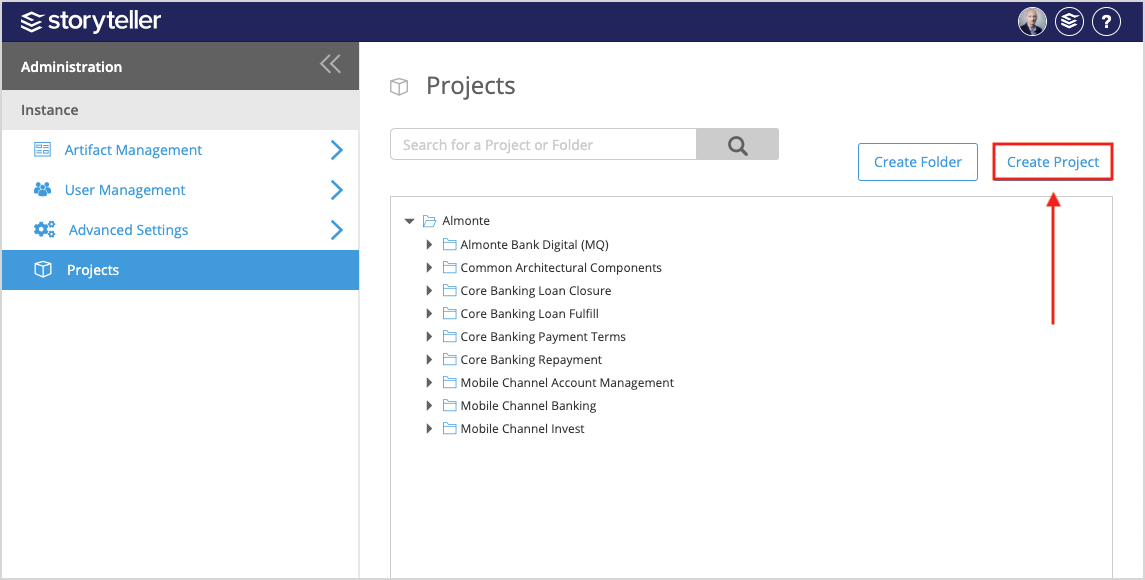
- In the Create New Project page displayed:
The processing time for creating a new project can vary depending on the template you select. You may be waiting on this page up to a couple of minutes if you proceed.
- Enter the project name and description in the corresponding fields.
- Click Select Location and select a location for your new project in the modal displayed and then click OK. You can also you the search field to search for a specific folder in your instance.
- Click Select Template to select an existing project template and then click Open. Use the search bar to search for and select a specific project you want to use as a template. You can also leave the Template field empty if you would like to create a project without one. Using an existing artifact as a template for a new project will retain any saved Default Descendants Views as well, rather than having to set up the view by configuring their filters and columns again.
- Select the Include Project Content checkbox to include the content from the project you selected as a template.
- Click Save.