View a Process in Text View
1 min
To view a Process in Text View, click the Process Text Mode icon ( ) in the artifact toolbar to see a read-only, text-based representation of the Process.
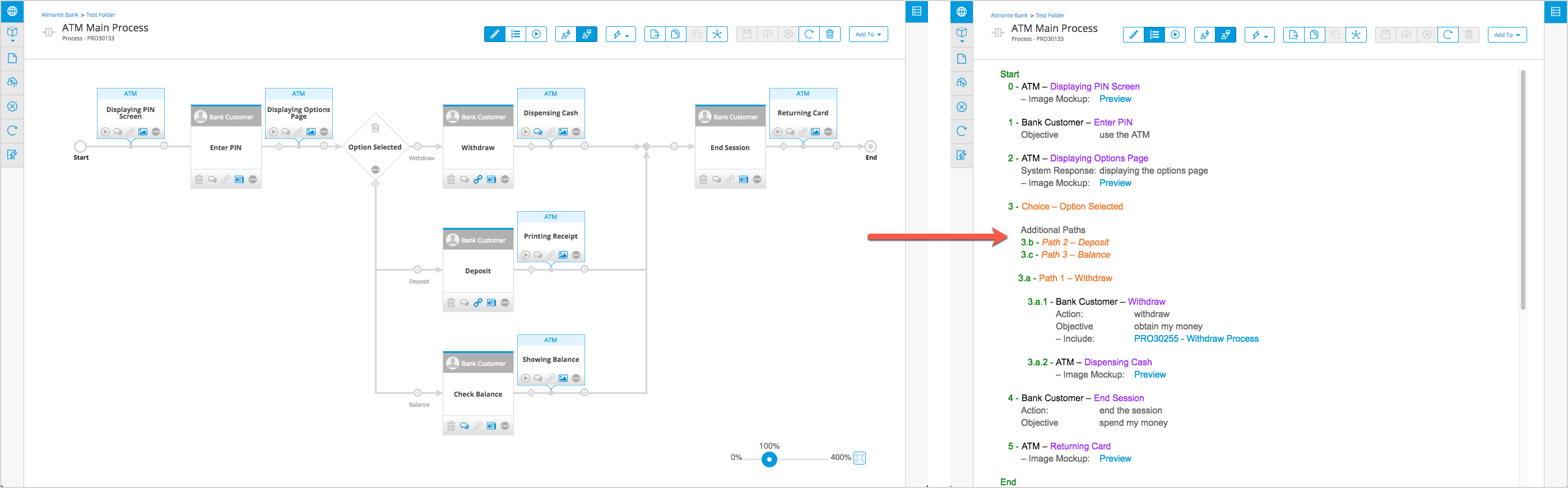
The Process Text Mode provides the following:
- a summary using indentation and color-coding to represent the structure of the Process
- each task or shape in the Process as an individual line
- both shapes and lines can be clicked to be highlighted. This highlighting is retained when switching views
- the Utility Panel is active in Text View. You can add detail to Process sub-artifacts (for example, create traces, add comments, attach files) by selecting a line that corresponds to a shape, then using the Utility Panel
- Includes are displayed as direct links to referenced artifacts
- Mockup references, when clicked, open a preview of the image
- All paths through the Process are listed
- Paths can be clicked. You can use the Additional Paths to navigate the Process