Federated Authentication Settings
Create & Configure App in Entra ID
(Formerly Azure AD)
Throughout this document, refers to the URL of your Blueprint site (example: https://demo.blueprintcloud.com).
For Blueprint Cloud customers, your Blueprint URL would have been provided to you by Support or your Success Manager.
Create the App
Navigate to the Microsoft Entra Admin Center (https://entra.microsoft.com)
Browse to Identity -> Applications -> Enterprise applications -> All applications
Select New Application
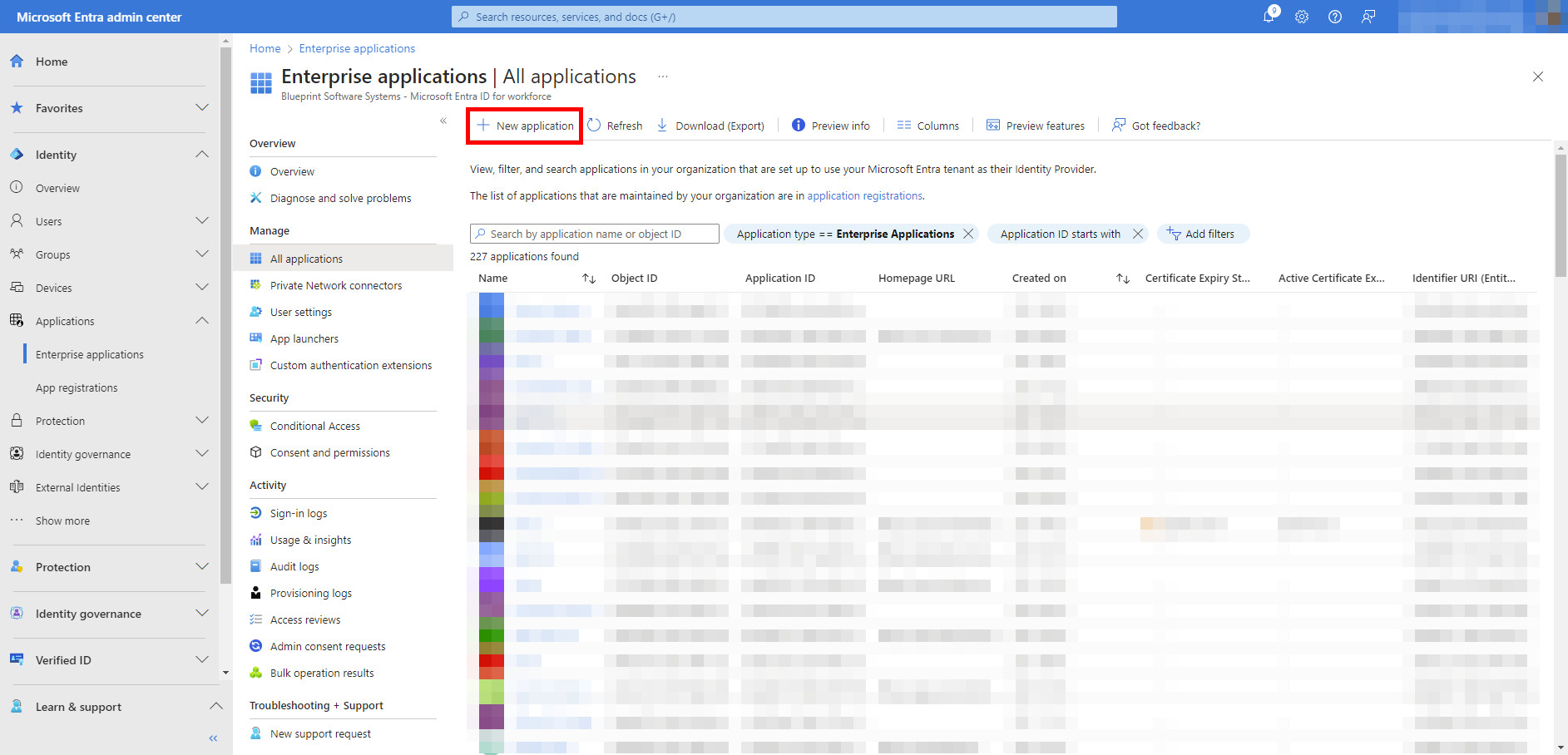
Select Create Your Own Application
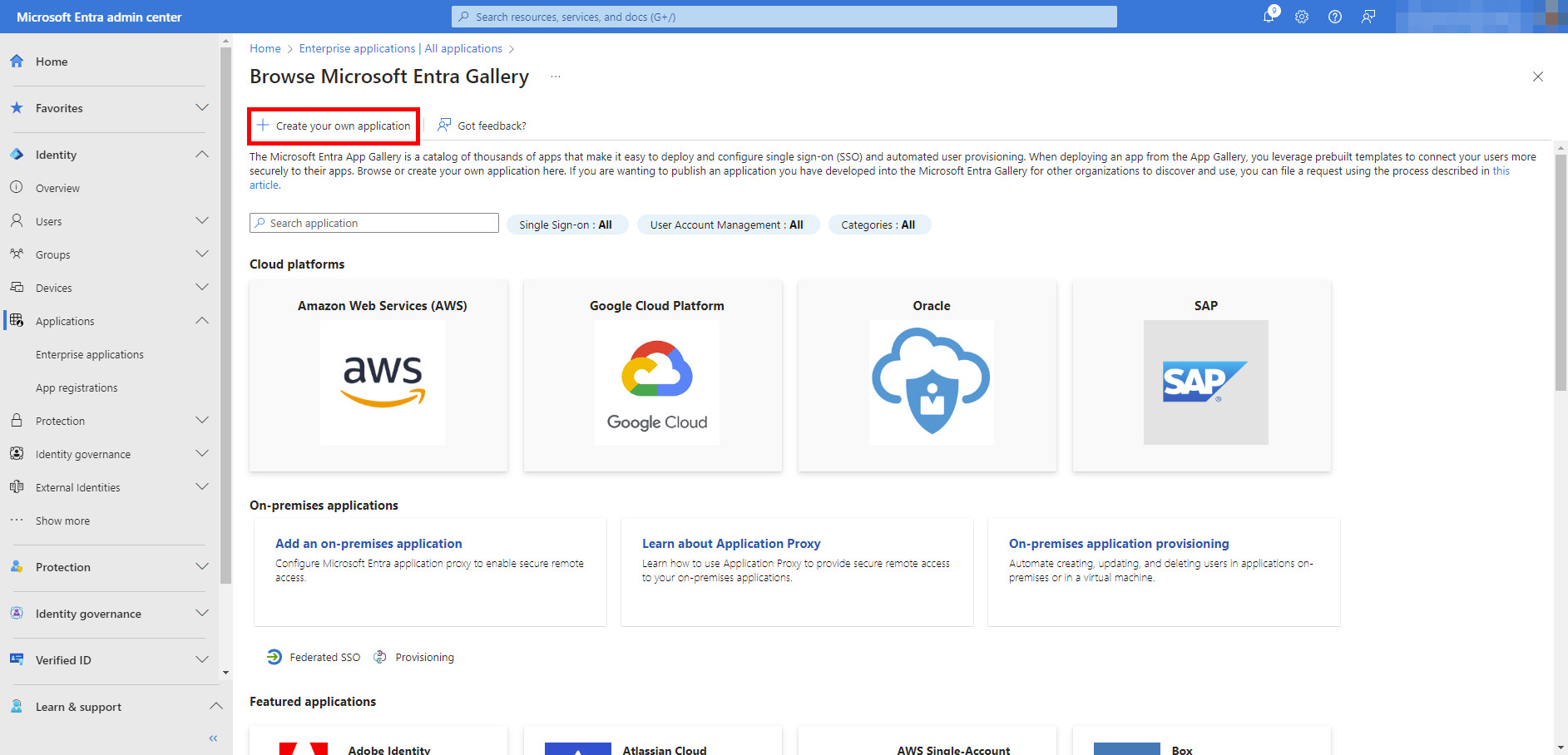
Name your app (e.g., “Blueprint SSO”)
Select the radio button for Integrate any other application you don't find in the gallery (Non-gallery)
Select Create
Configure the App
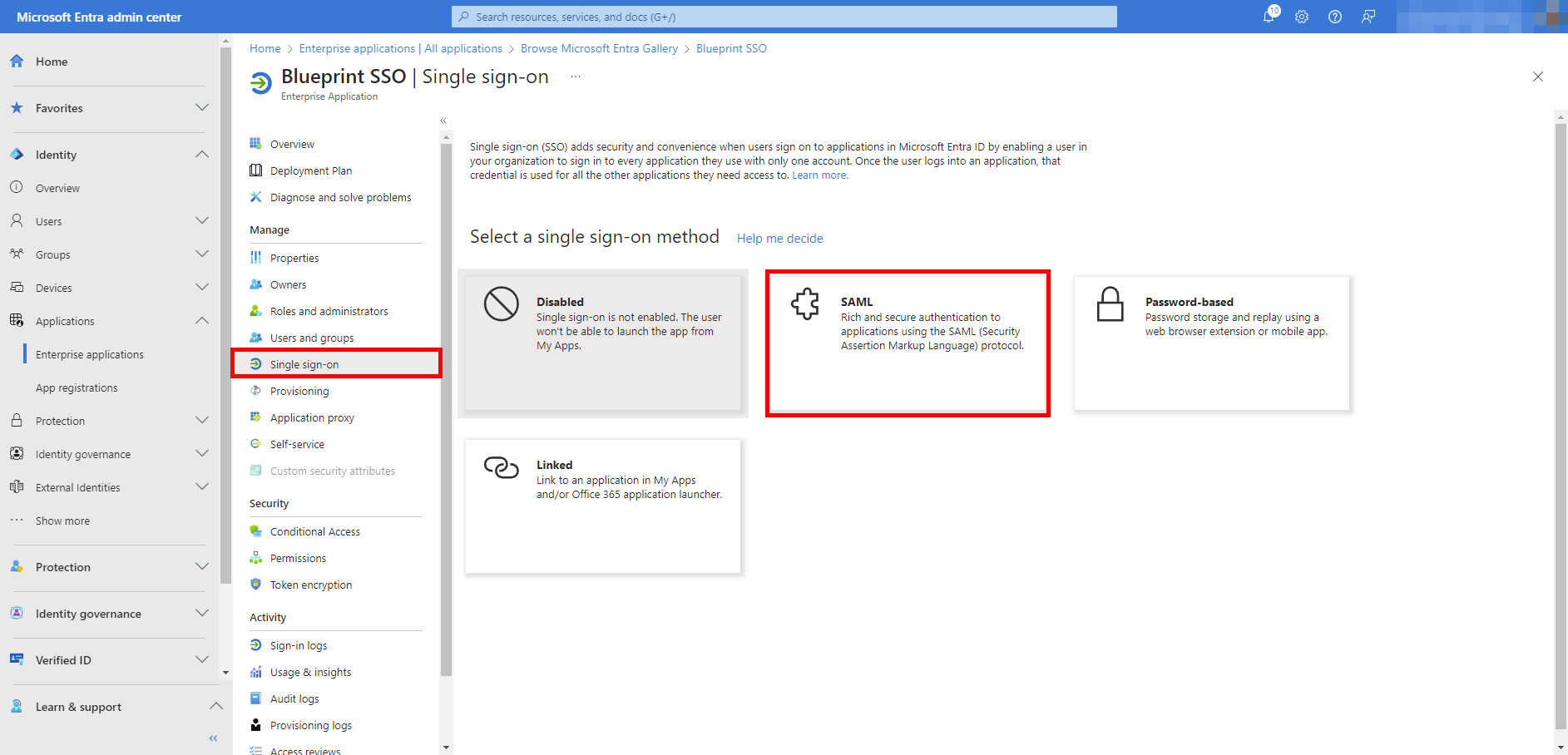
Navigate to Single Sign-On
Select SAML
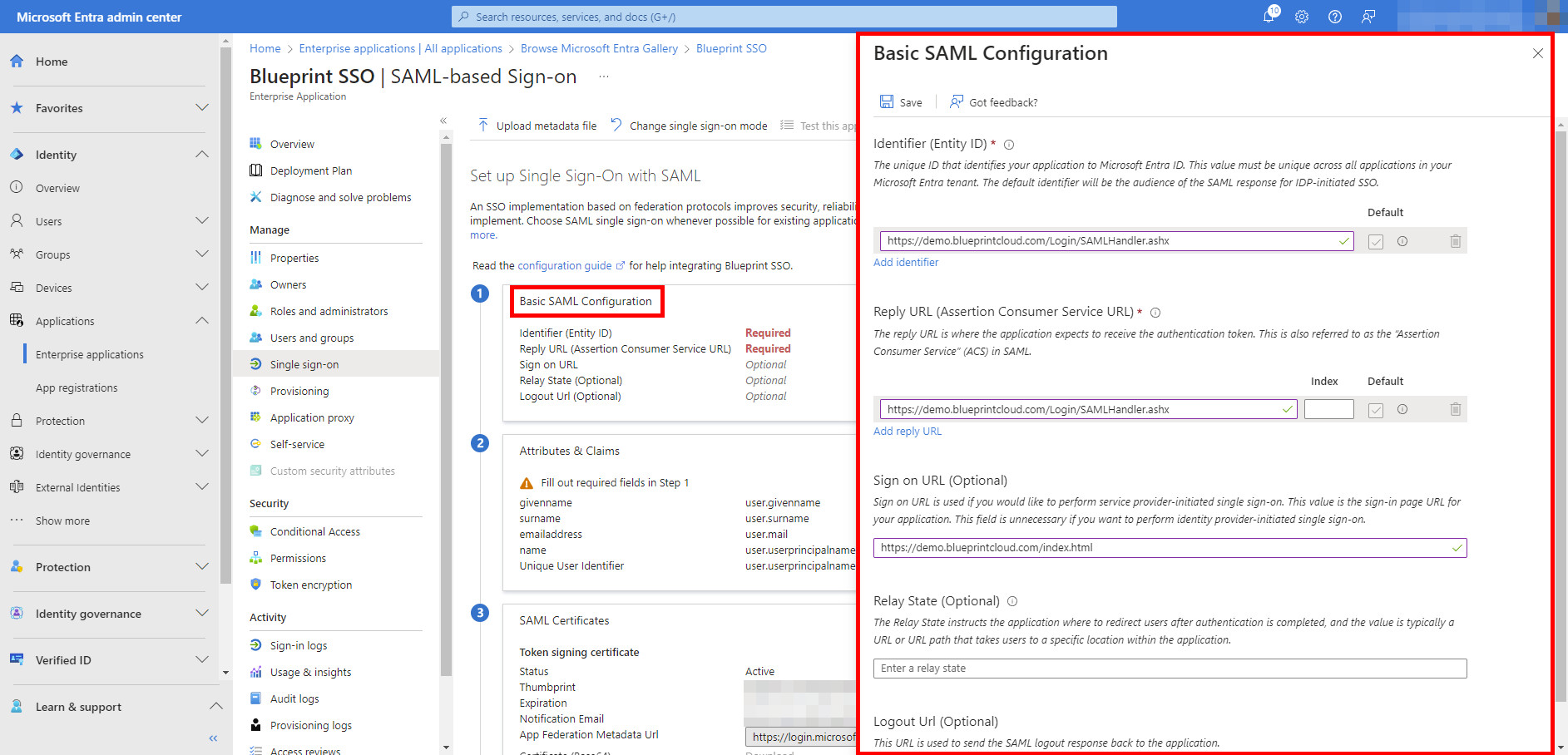
Edit Basic SAML Configuration and populate the fields as follows: For SP-initiated SSO
- Identifier (Entity ID): /Login/SAMLHandler.ashx
- Reply URL (Assertion Consumer Service URL): /Login/SAMLHandler.ashx
- Sign on URL: /index.html
Relay State and Logout URL are not required and can be left blank ------------------------- For SP & IdP-initiated SSO
- Identifier (Entity ID): <YourBlueprintURL>/Login/SAMLHandler.ashx/?host=https%3A%2F%2F<YourBlueprintURL>
- Reply URL (Assertion Consumer Service URL): <YourBlueprintURL>/Login/SAMLHandler.ashx
- Sign on URL: <YourBlueprintURL>/index.html
- Relay State and Logout URL are not required and can be left blank.
Download the Federated Metadata XML file from the SAML Certificates section.
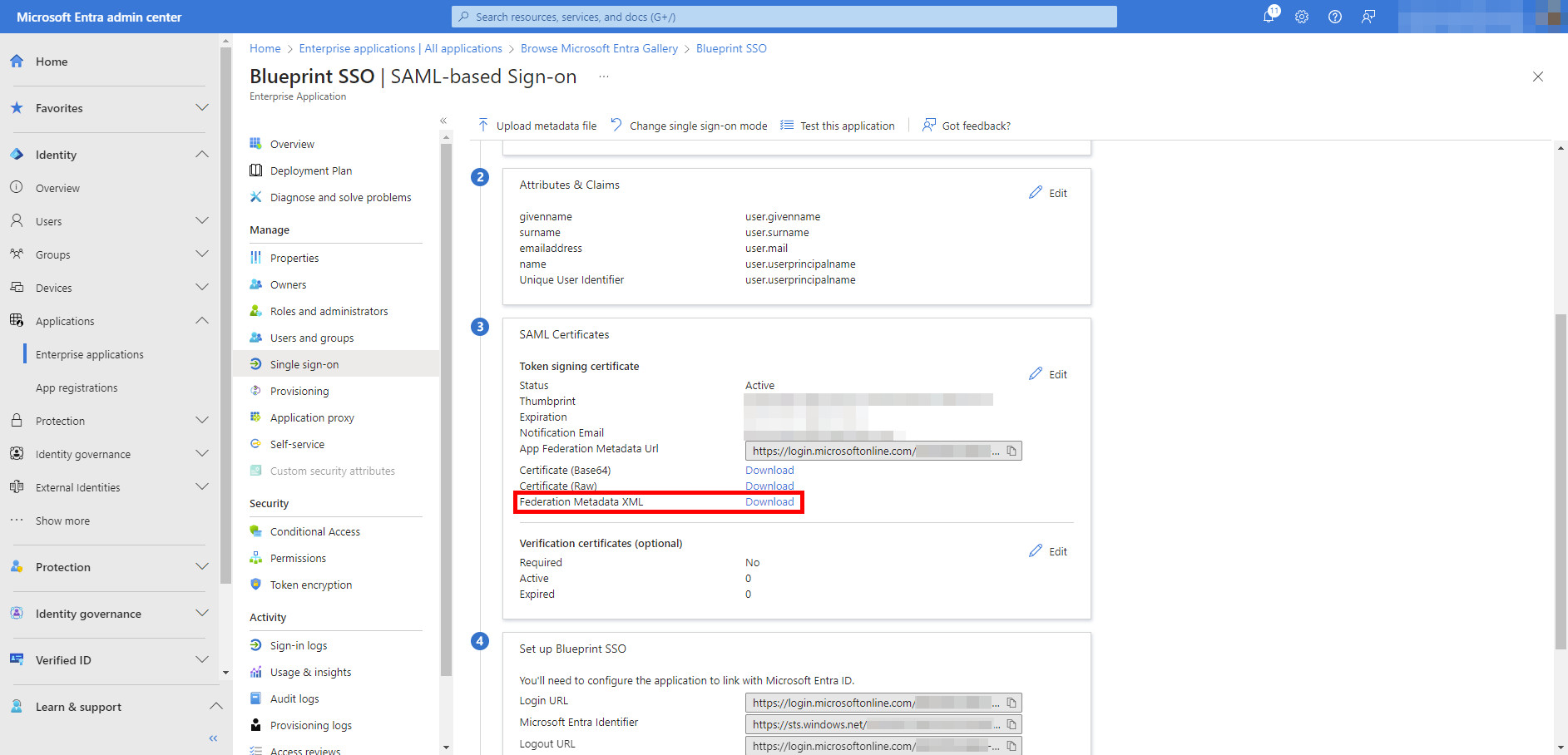
Depending on your corporate IT policies and the Enterprise Application’s Assignment Required setting, you may need to assign users or groups to the application before they can sign in.
Refer to Microsoft’s documentation for more information:
Configure Blueprint
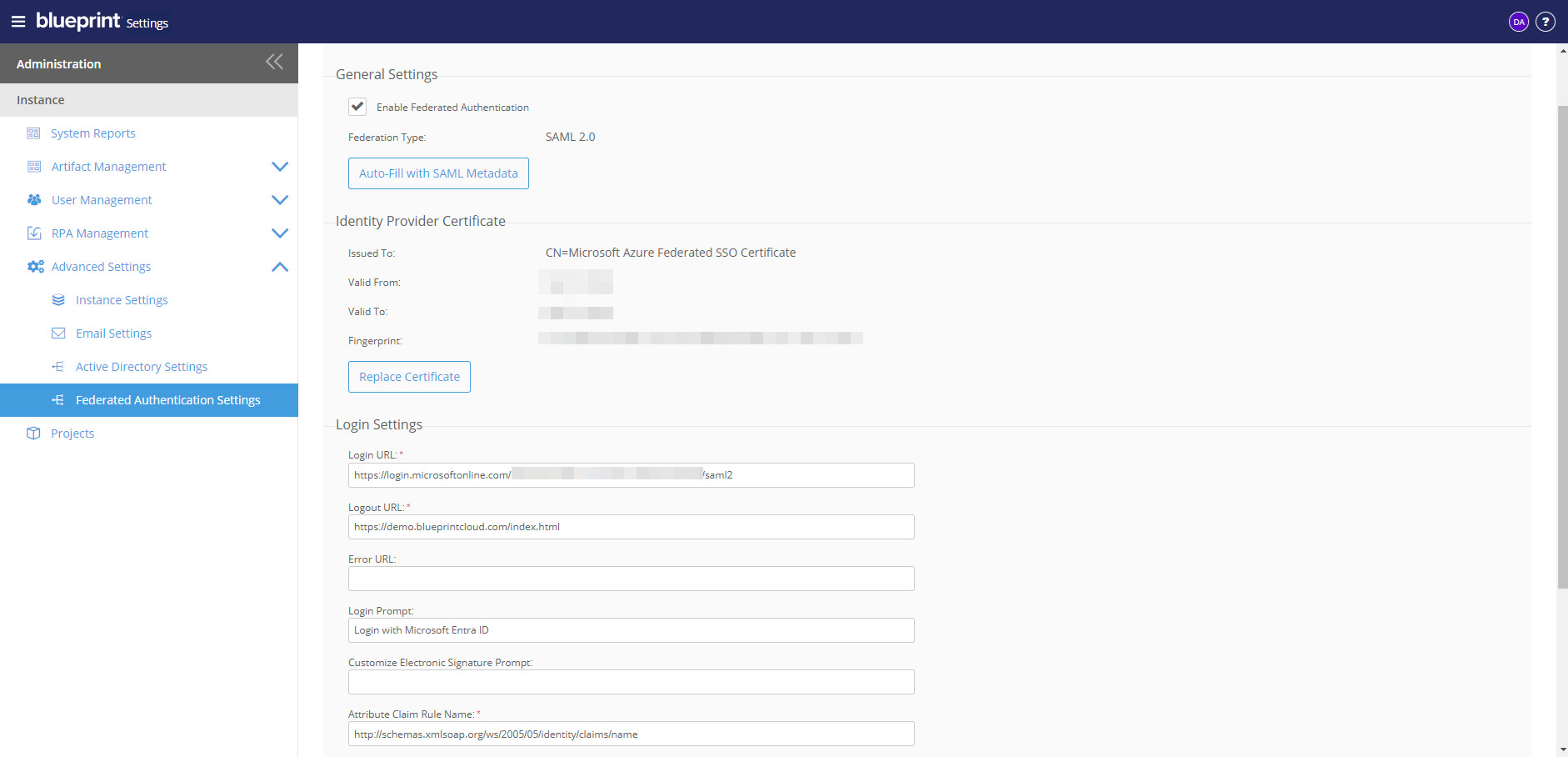
From Settings, expand Advanced Settings and select Federated Authentication Settings
For information on how to access the Admin Portal, see About the Administration Portal.
Check the Enable Federated Authentication checkbox
Click the Auto-Fill With SAML Metadata button and upload the XML file you downloaded in Step 4 from the previous section
Modify the following fields in the Login Settings section:
- Logout URL: Enter your Blueprint URL (e.g., https://demo.blueprintcloud.com)
- Login Prompt Value: Enter the text you want to display below the Login button on Blueprint’s login page directing your users to log in with SSO. For example, you can enter “Login with Microsoft Entra ID”. Users will need to click this link to trigger SP-initiated SSO.
- Attribute Claim Rule Name: Enter *http://schemas.xmlsoap.org/ws/2005/05/identity/claims/name* to use Entra ID’s default claim for User Principal Name (the end user’s email address).
Create Blueprint Users
Once configuration is complete, an individual's username must be set to their Microsoft 365 email address to ensure that their User Principal Name and Blueprint username match.