Define File Upload Restrictions Settings
1 min
In the Administration Portal, you can view and define the types of files that you can upload in Blueprint.
To view and define your File Upload Restrictions settings:
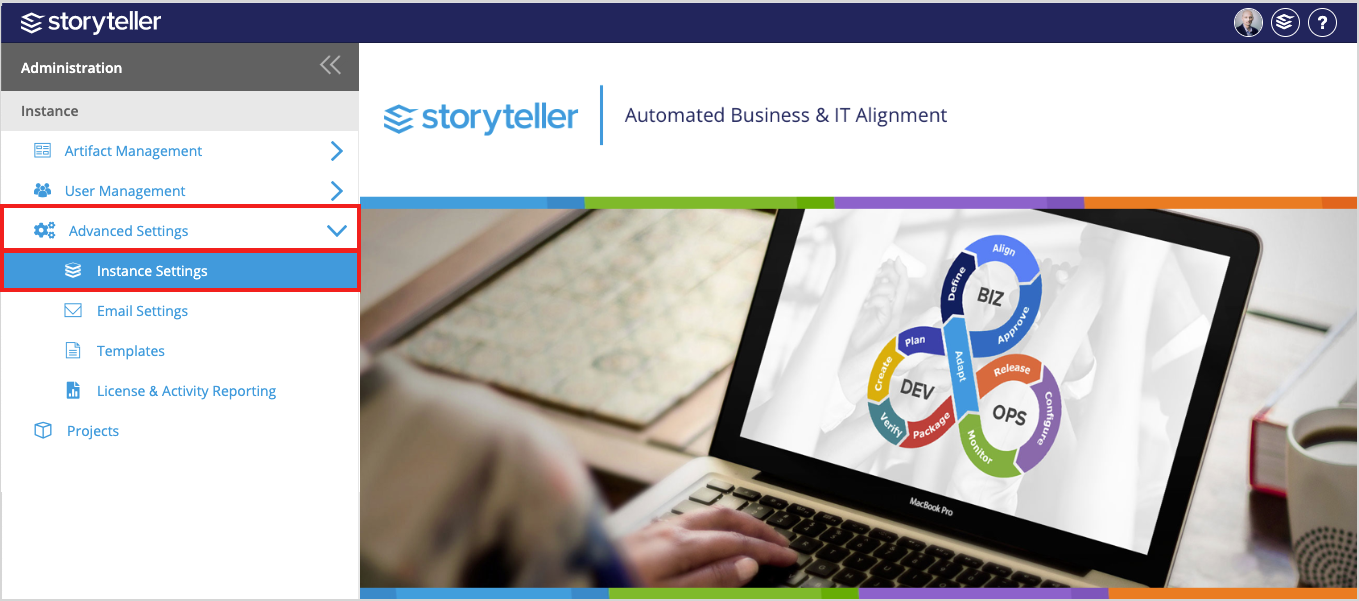
- In the Administration Portal, click Advanced Settings and then select Instance Settings in the side panel. For information on how to access the Admin Portal, see About the Administration Portal.
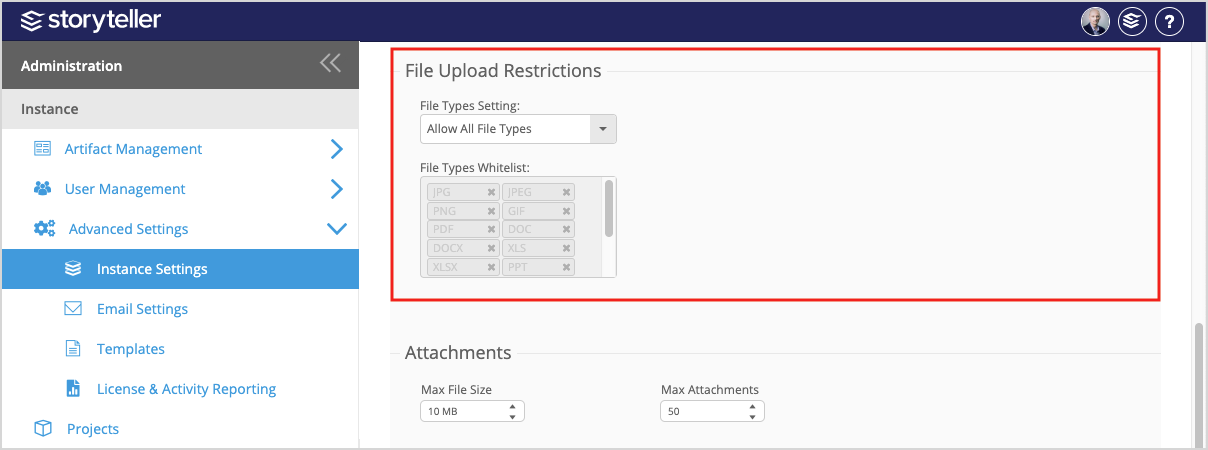
- In the File Upload Restrictions section:
- Select one of the following three options in the File Types Setting field: 1. Allow All File Types - enables you to upload any file type in Blueprint. This is the default setting. 2. Allow No File Types (Disable File Uploads) - disables you from uploading any files in Blueprint. 3. Allow Only Whitelisted File Types - enables you to upload the file types you specify in the File Types Whitelist field.
- If you select Allow Only Whitelisted File Types in the File Types Setting field, you can define the whitelist of file types that users will be able to upload by entering their extensions in the File Types Whitelist field. The different types of files that can be defined in this field includes: JPG, JPEG, PNG, GIF, PDF, DOC, DOCX, XLS, XLSX, PPT, PPTX, TXT. These are also the whitelisted filetypes by default.
- Click Save at the bottom of the page to save and activate your changes.
To see and experience any changes made to Instance Settings, Blueprint users have to refresh their browsers.