Configuring a Designated Approval Property
3 min
The Designated Approval Property allows administrators to create an automatically updated representation of whether an artifact has been Formally Approved or not. Administrators are encouraged to use the tool when:
- Formal Approvals are used regularly in an organization’s activities in Blueprint
- Administrators desire a read-only representation of approval status (i.e. one that cannot be accidentally set to an incorrect value)
- Administrators would like to only sync their artifacts from Blueprint into other platforms only if their artifact was formally approved.
To configure a Designated Approval Property, users must have the “Manage Standard Properties and Standard Artifact Types” privilege in their Instance Administration role. For more information on Instance Administrator Roles, see the Manage Instance Administrator Roles.
To configure a Designated Approval Property:
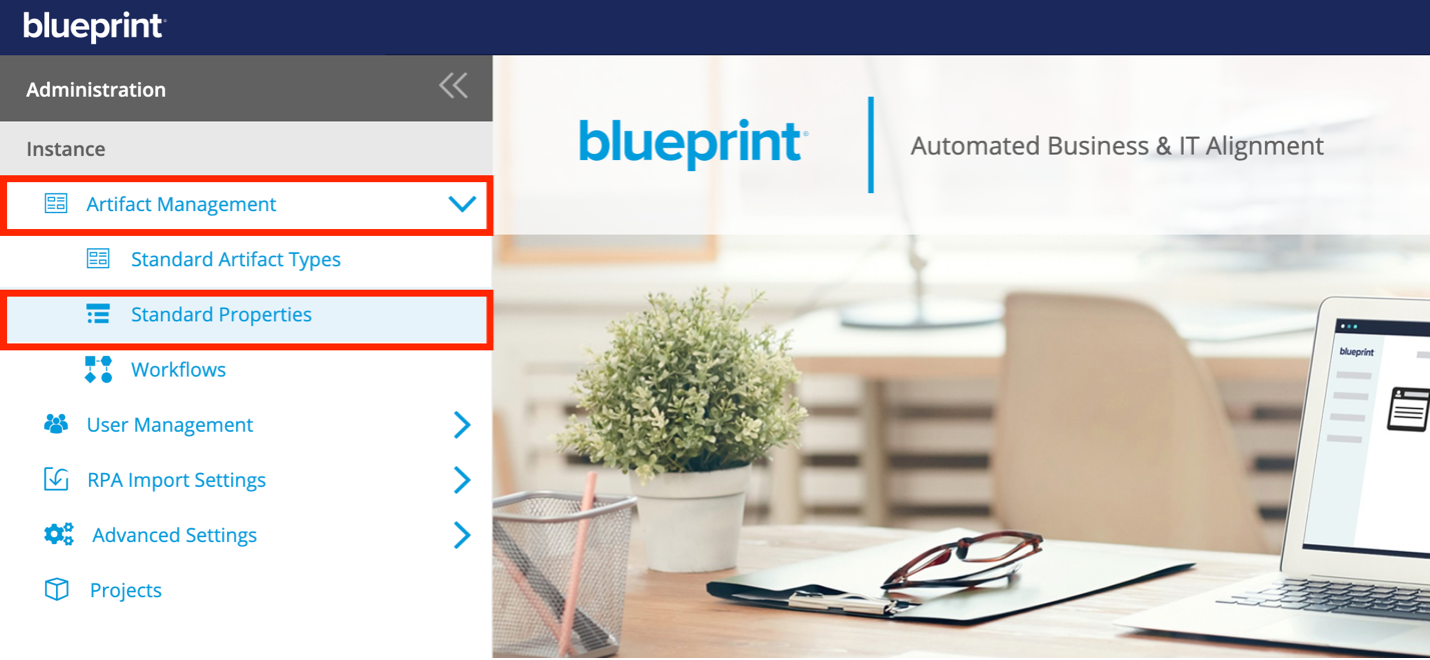
- In the Administration Portal, under Instance, click Artifact Management and select Standard Properties. For information on how to access the Admin Portal, see About the Administration Portal.
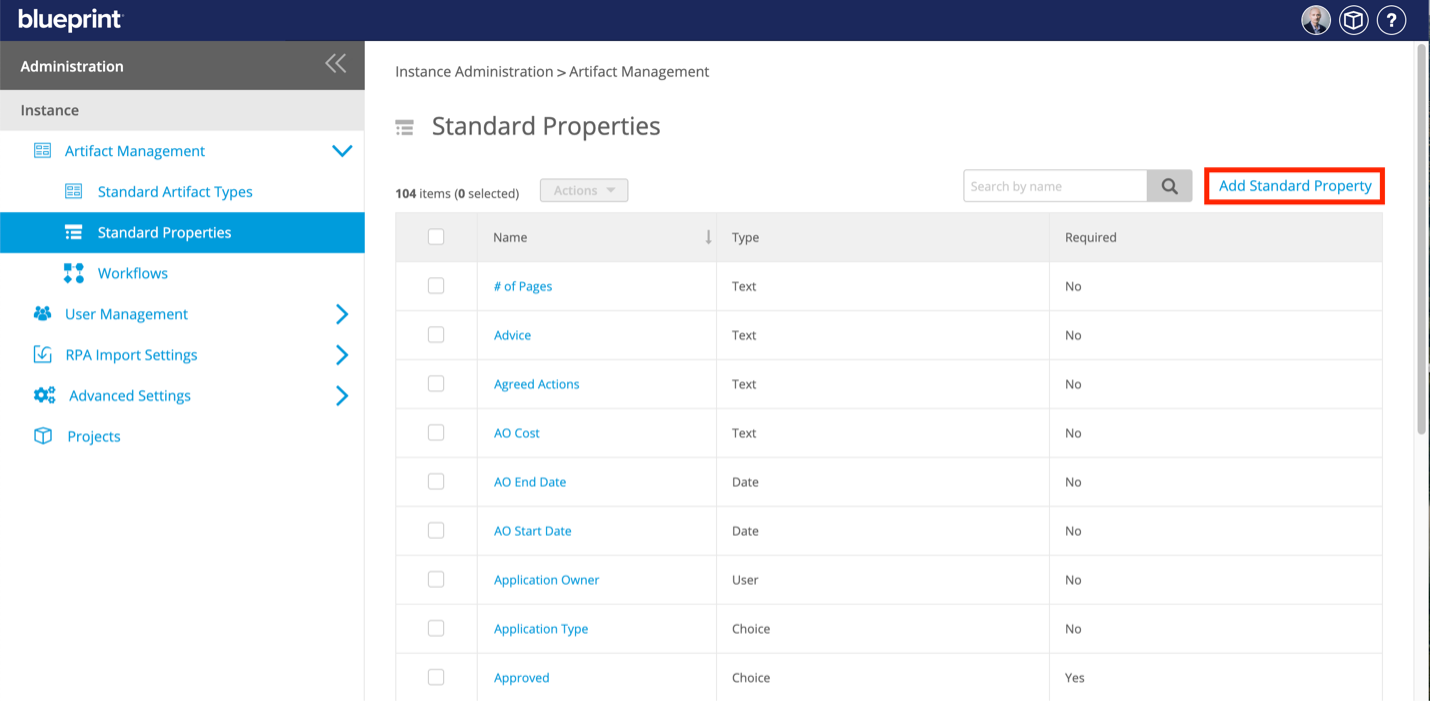
- The Standard Properties page displays all the Standard Properties in your instance. Click a property in the Name column to edit its details, or select “Add Standard Property” to create a new property.
- In the Standard Property's details page displayed, edit the following fields:
Note: when “Designated Approval Property” is selected, other settings will be automatically filled and become read-only. This is expected behaviour.
- In the Settings section, set the Type of property to Choice
- Select “Designated Approval Property”
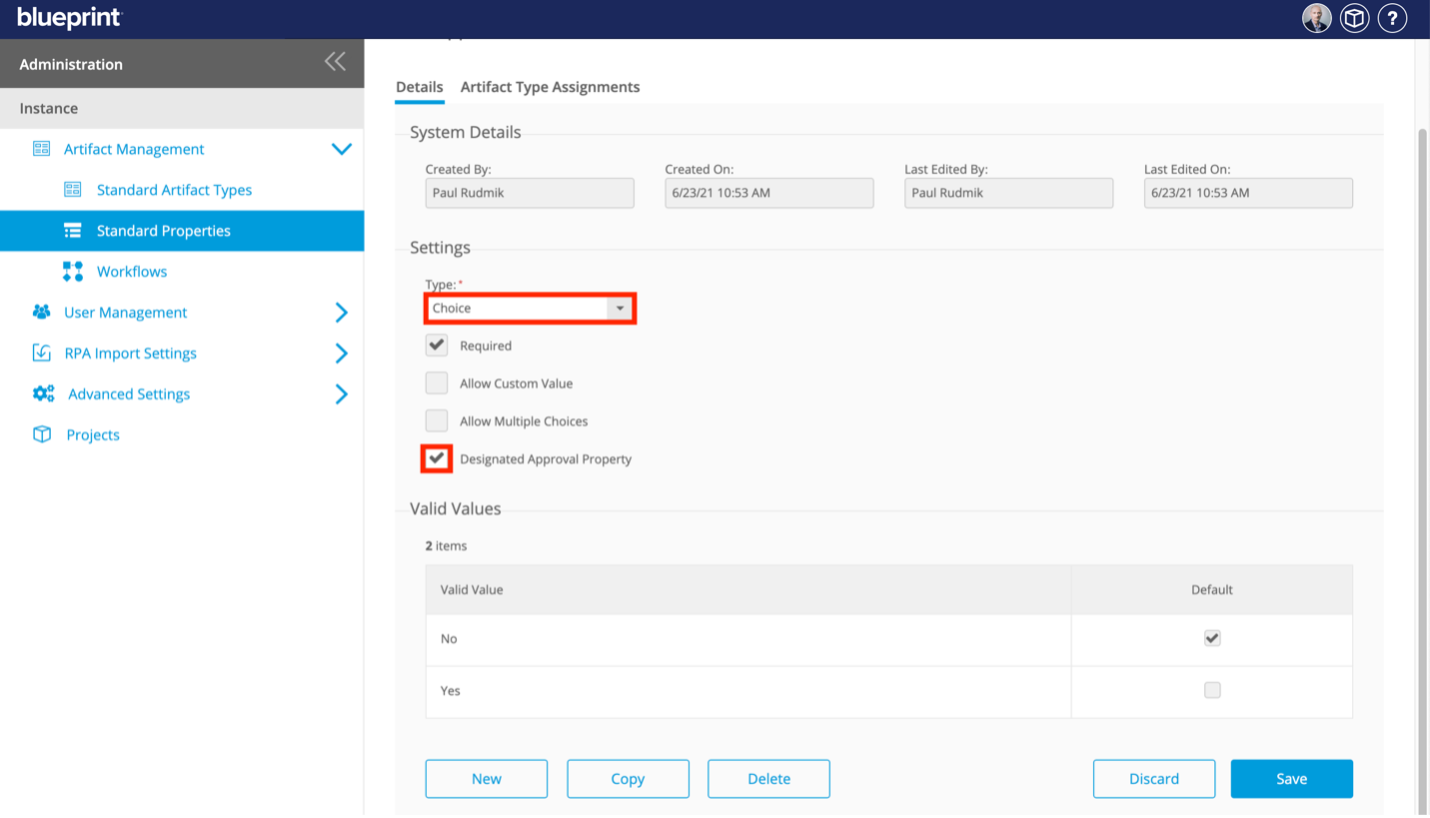
- Click Save.
- Click the Artifact Type Assignments tab.
- Click Assign to Standard Artifact Types.
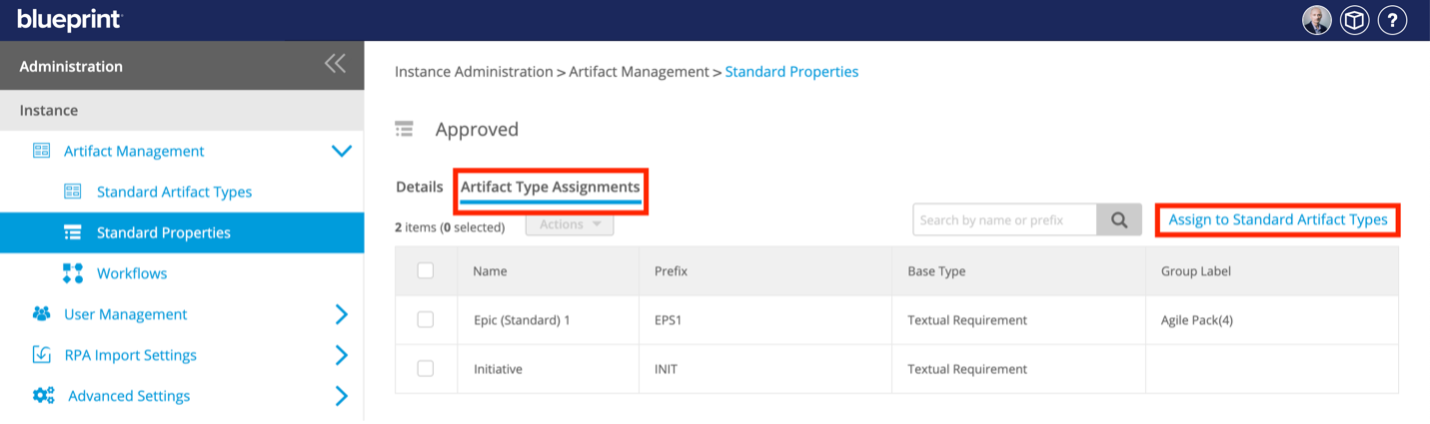
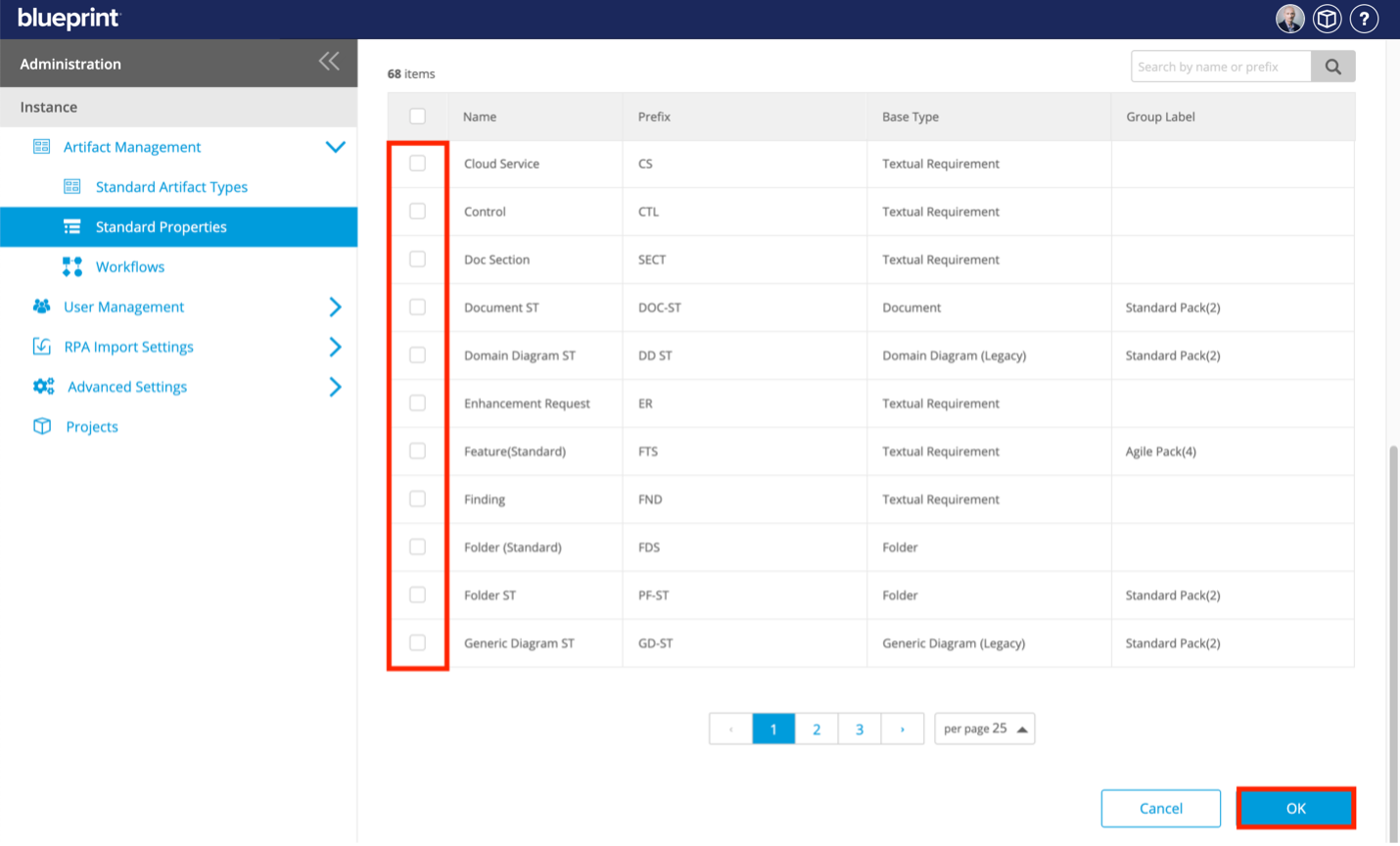
- Select the checkboxes for all Standard Artifact Types you want the Designated Approval Property to appear on and then click OK.