Add Valid Values to a Choice Type Custom Property
As a project administrator, you can create and configure Choice type Custom Properties with valid values that your users can select from, and assign them to Project Artifact Types.
This might be beneficial when your organization wants to apply a specific property for a particular project with defined values that your users can select to maintain consistency.
To add valid values for a Choice type Custom Property in the Administration Portal, users must have the "Manage Project Configuration" privilege in their Project Administration role. For more information on Project Administrator Roles, see the Manage Project Administrator Roles.
Standard Properties can be viewed by Project Administrators, but cannot be edited.
To add valid values to a Choice type Custom Property:
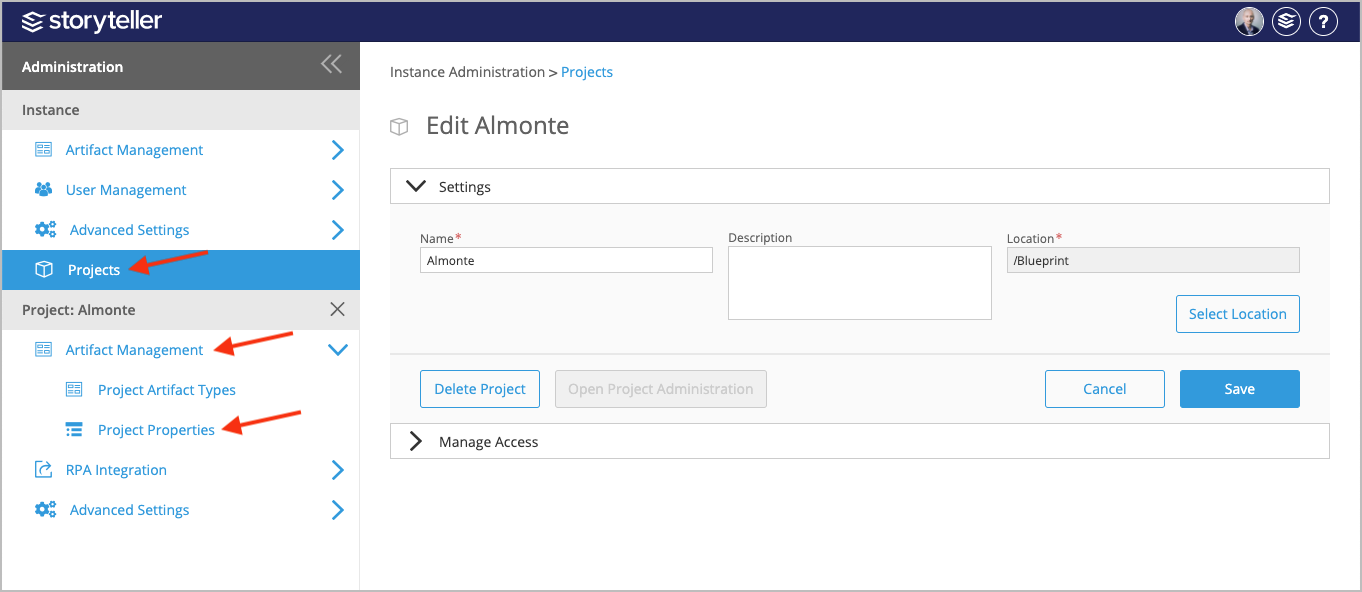
- In the Administration Portal, click Projects and select the project with the Custom Property you want to add valid values to. For information on how to access the Admin Portal, see About the Administration Portal.
- Under Projects, click Artifact Management and select Project Properties.
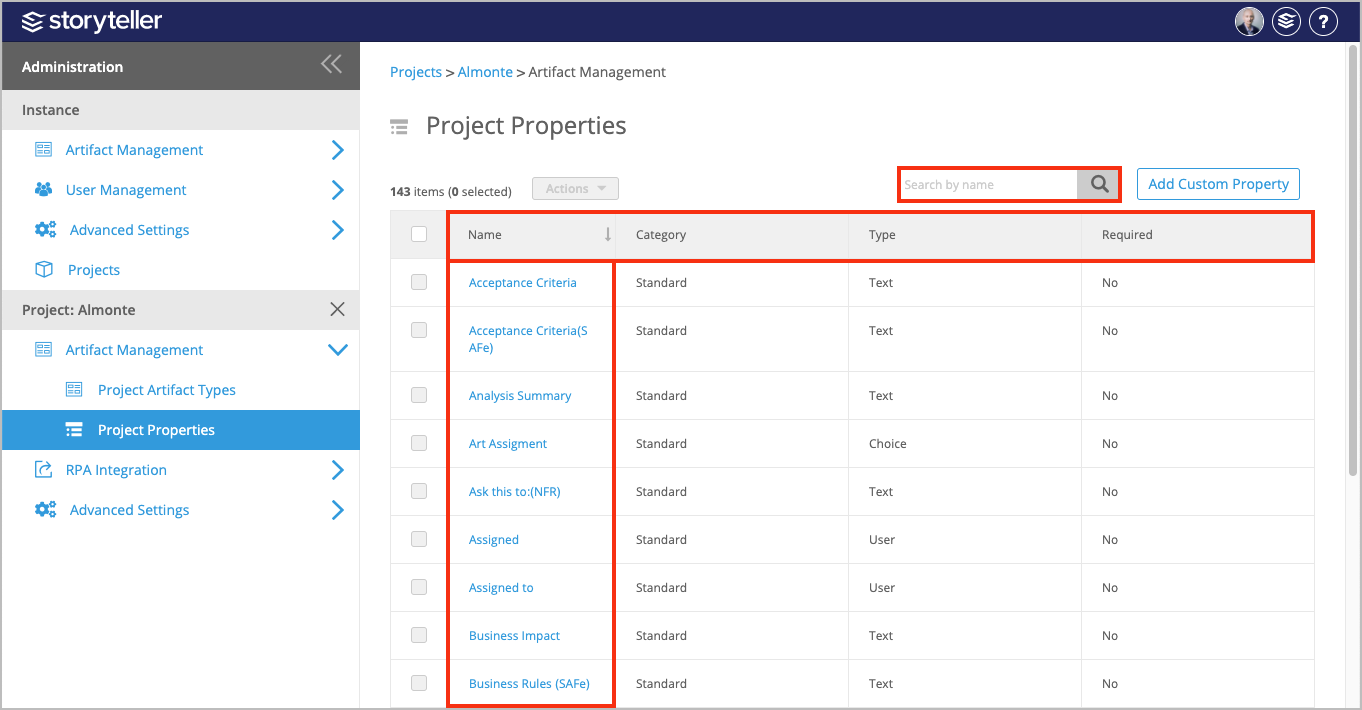
- In the Project Properties page, click the name of the Choice type Custom Property you want to add valid values to. You can search for the property by name using the search bar in the upper right corner. You can also sort the list by clicking a column header to display each column in alphabetical or reverse alphabetical order. Click the Category column header to bring all Custom Properties to the top of the table.
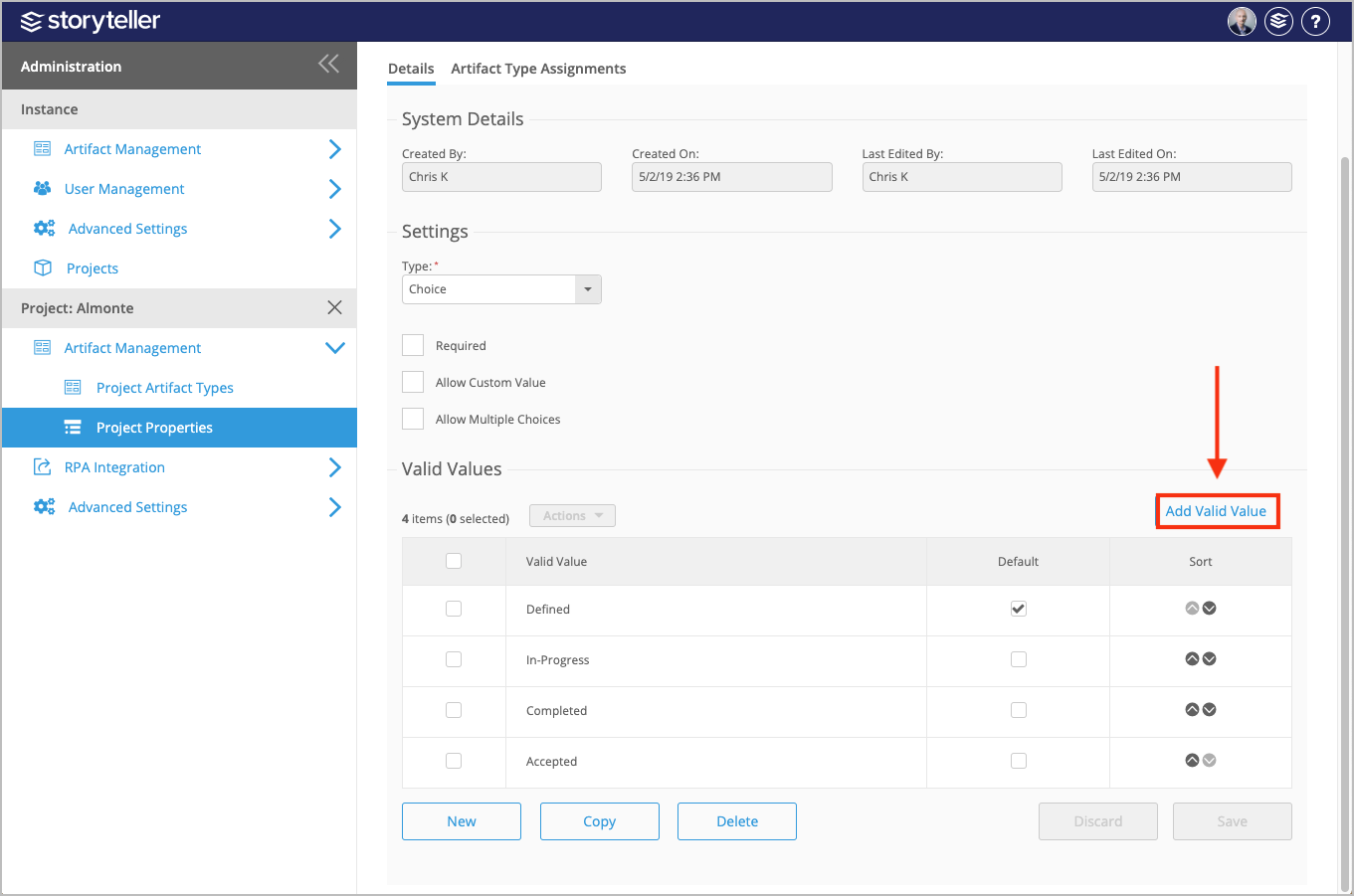
- In the Custom Property's details page, click Add Valid Value.
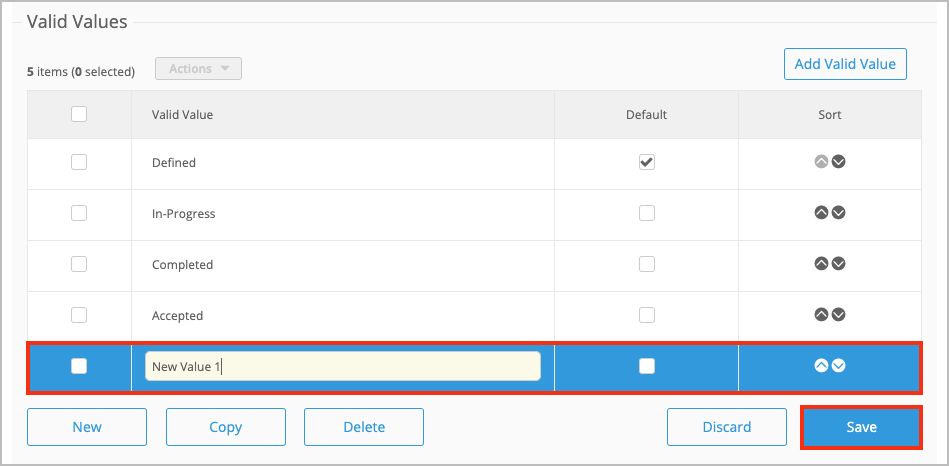
- Define the following for your new valid value:
- Click the edit icon in the Valid Value column and enter the value you want to define.
- If you want to define it as a default value, select the corresponding checkbox in Default column.
- You can order your valid values and define the order they appear in the dropdown to users in Blueprint when defining that property by clicking the directional arrows in the Order column.
- Click Save.