Add Artifacts to a Review
The Artifacts tab in a Review artifact is where you add and delete artifacts, as well as set their approval status. Once the Review is Active, artifacts’ individual statistics and details reports will be available.
If Review participants make comments on artifacts during the Review process, those discussions can also be viewed, managed, and responded to from this tab.
To add artifacts to a Review:
- Click the Review artifact of interest in the Explorer.
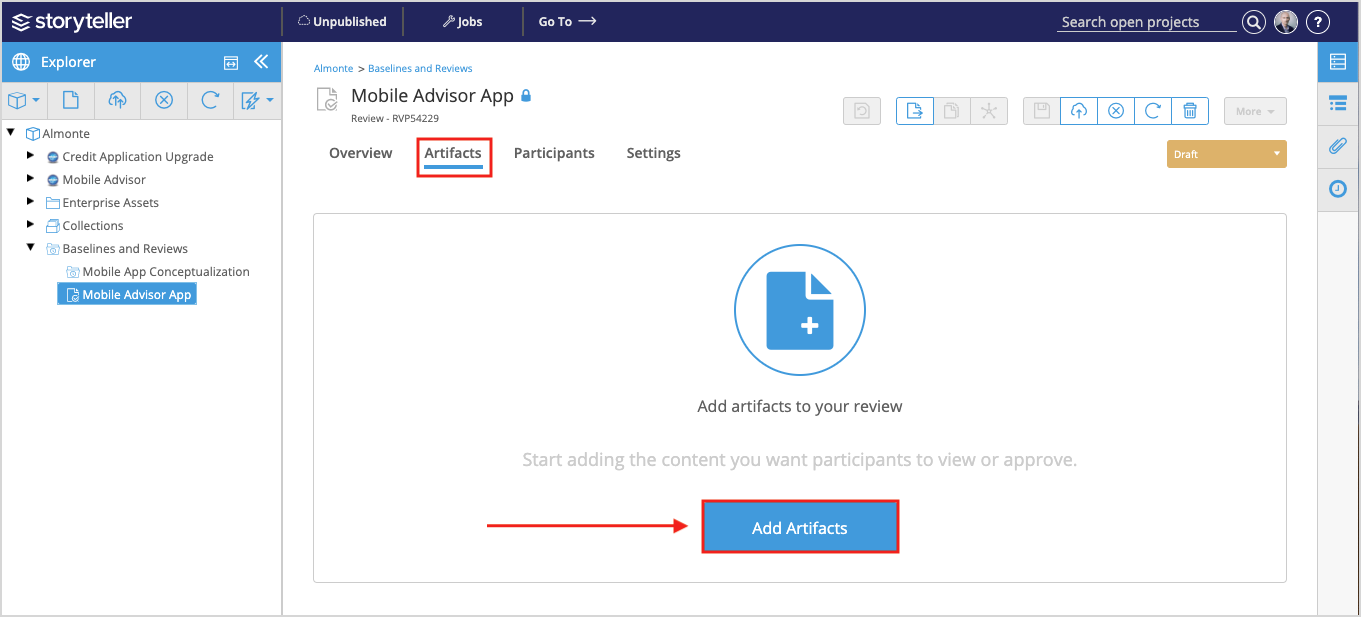
- Click the Artifacts tab.
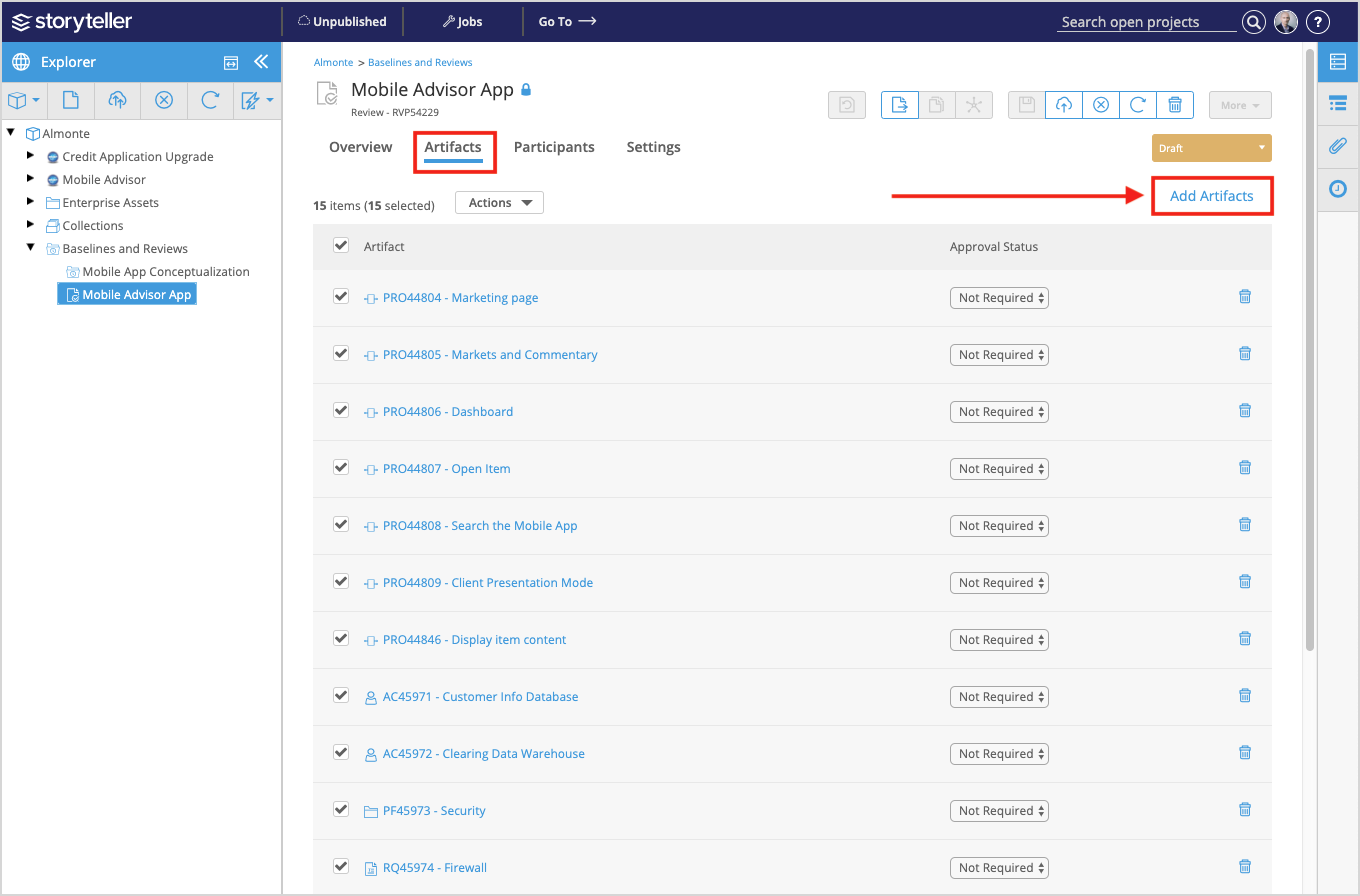
- Click the Add Artifacts. If your Review does not have any artifacts yet, the Add Artifacts button is located in the center of the screen.If your Review already has artifacts and you want to add more, click Add Artifact in the upper-right.
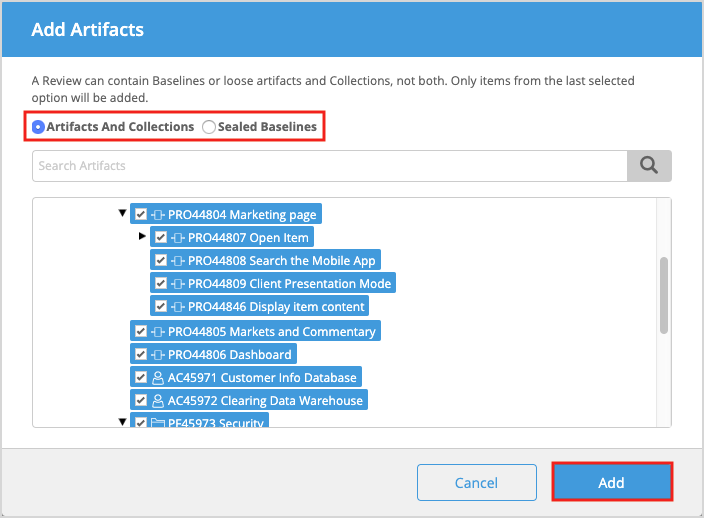
- In the Add Artifacts modal, browse through the project hierarchy or use the search bar to find and select the artifacts you want to add to the Review. Selecting a folder does not select the artifacts within it; all artifacts must be selected individually. You can choose to select artifacts and Collections or Sealed Baselines. Selecting each respective option will display the applicable artifacts that can be added to the Review from each category. When you have selected all your relevant artifacts and/or Sealed Baselines, click Add.The selected artifacts are now visible in the Artifacts tab. After they are added, all artifacts are selected by default so that bulk actions, such as changing approval status, can be applied immediately. See Set the Approval Status for a Review for more information.
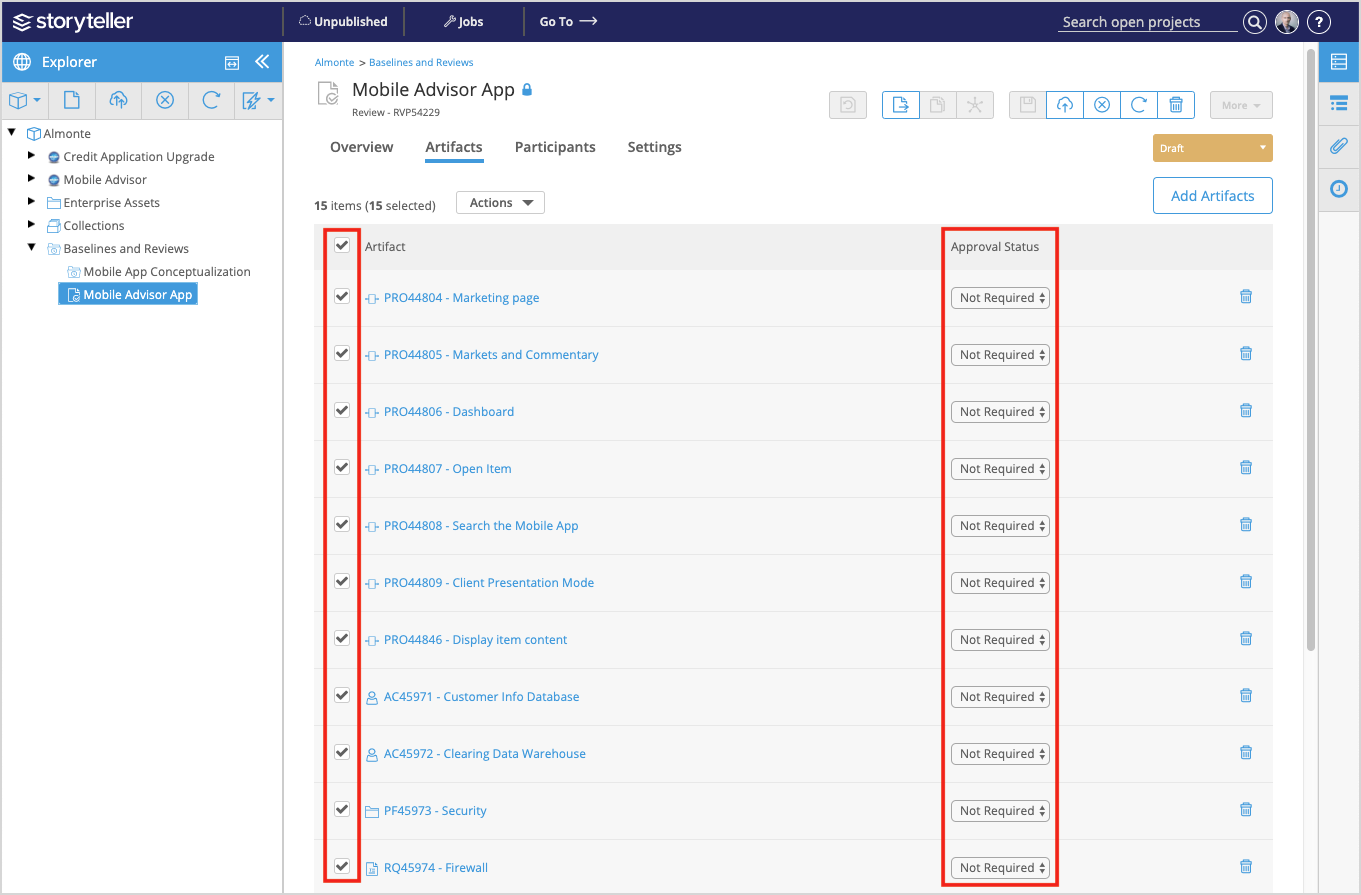
The artifacts will not be in the project hierarchy order until the Review artifact is published. After publishing, the order of the artifacts will match that of the project hierarchy as it is seen in the Explorer.
When adding more artifacts, their order will also be random until the Review artifact is published again. This hierarchy logic applies to Review artifacts in both Draft and Active states.