Add and Label Choices in a Process
When you want to model a user choice (for example, an ATM main menu), you can add a set of choices (for example, withdraw, deposit, and transfer).
By default, when a set of choices is added, it includes a minimum of two choices, along with two newly created tasks. If the set of choices is added before an existing task, that task will be included as the first choice.
To add and label a new set of choices:
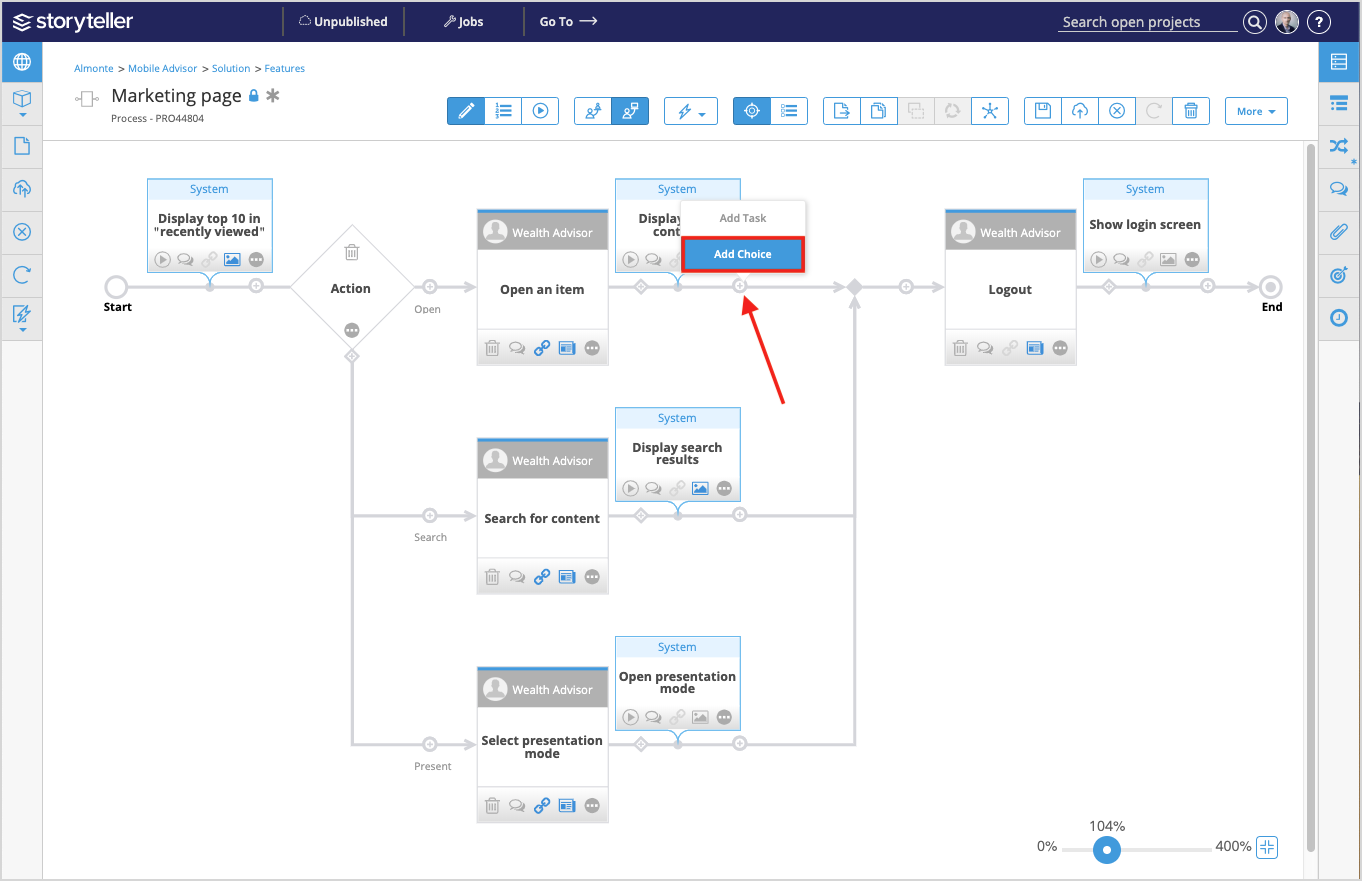
- Click the circular add icon (
 ) where you want to model user choices and select Add Choice.The newly created set of choices are highlighted in yellow.
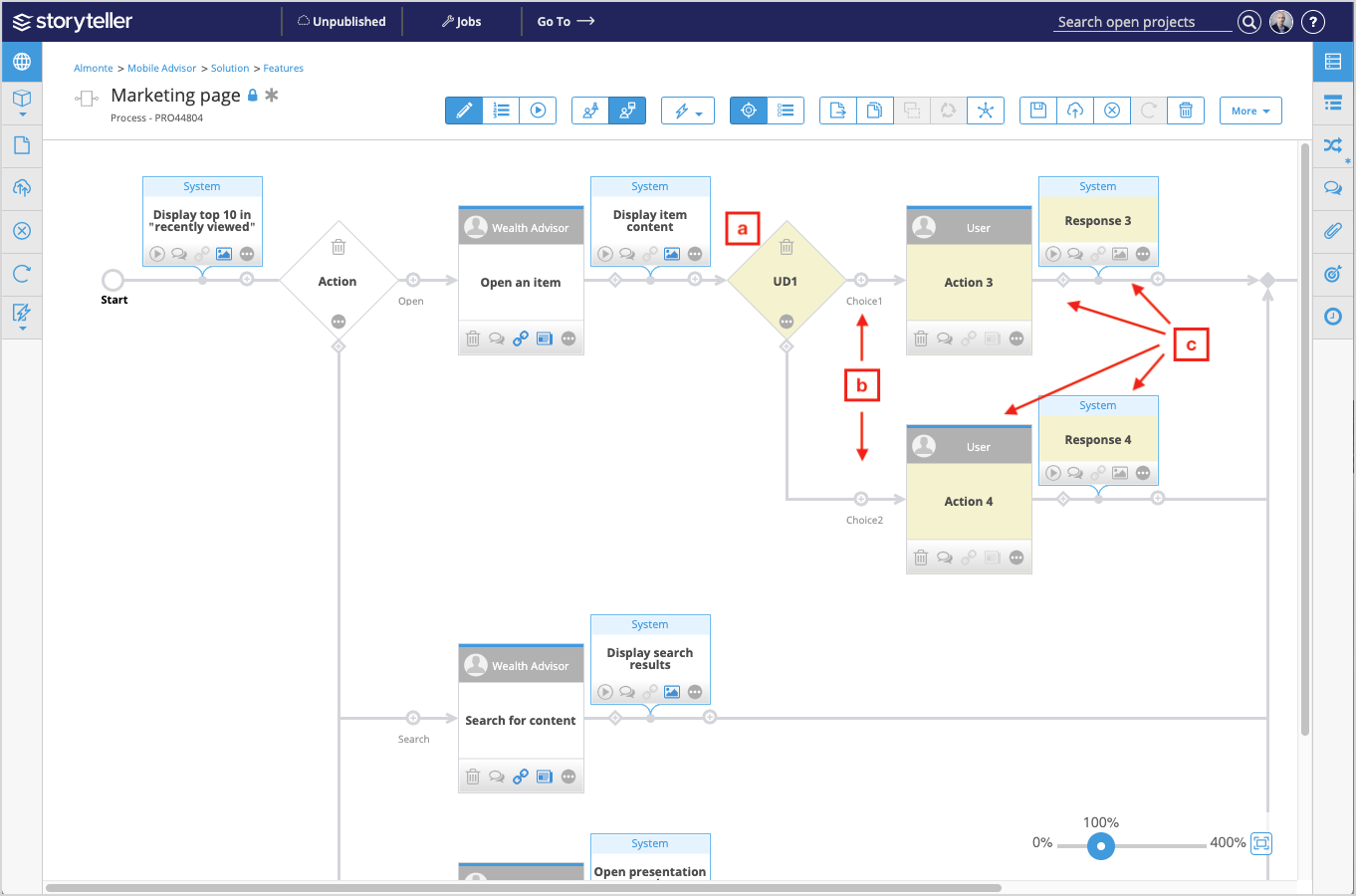
- Double-click the fields highlighted in yellow to modify the default labels.
- Change UD (user decision) to describe the purpose of the set of choices to other users.
- Rename each Choice to describe the different user choices.
If you further configure the decision in its Additional Detail window, the values entered for the Label and each Choice will replace the labels you enter here.
- Label the newly added tasks and system tasks.
If you further configure the decision shape in its Additional Detail window, the values entered for the Label and each Choice will replace the labels you enter here.
Add Choices to Existing Sets and Change Endpoints
Adding a choice to an existing set of choices models an additional user action, and inserts a choice that includes a user task and accompanying system task.
There can be a maximum of 10 choices in a set.
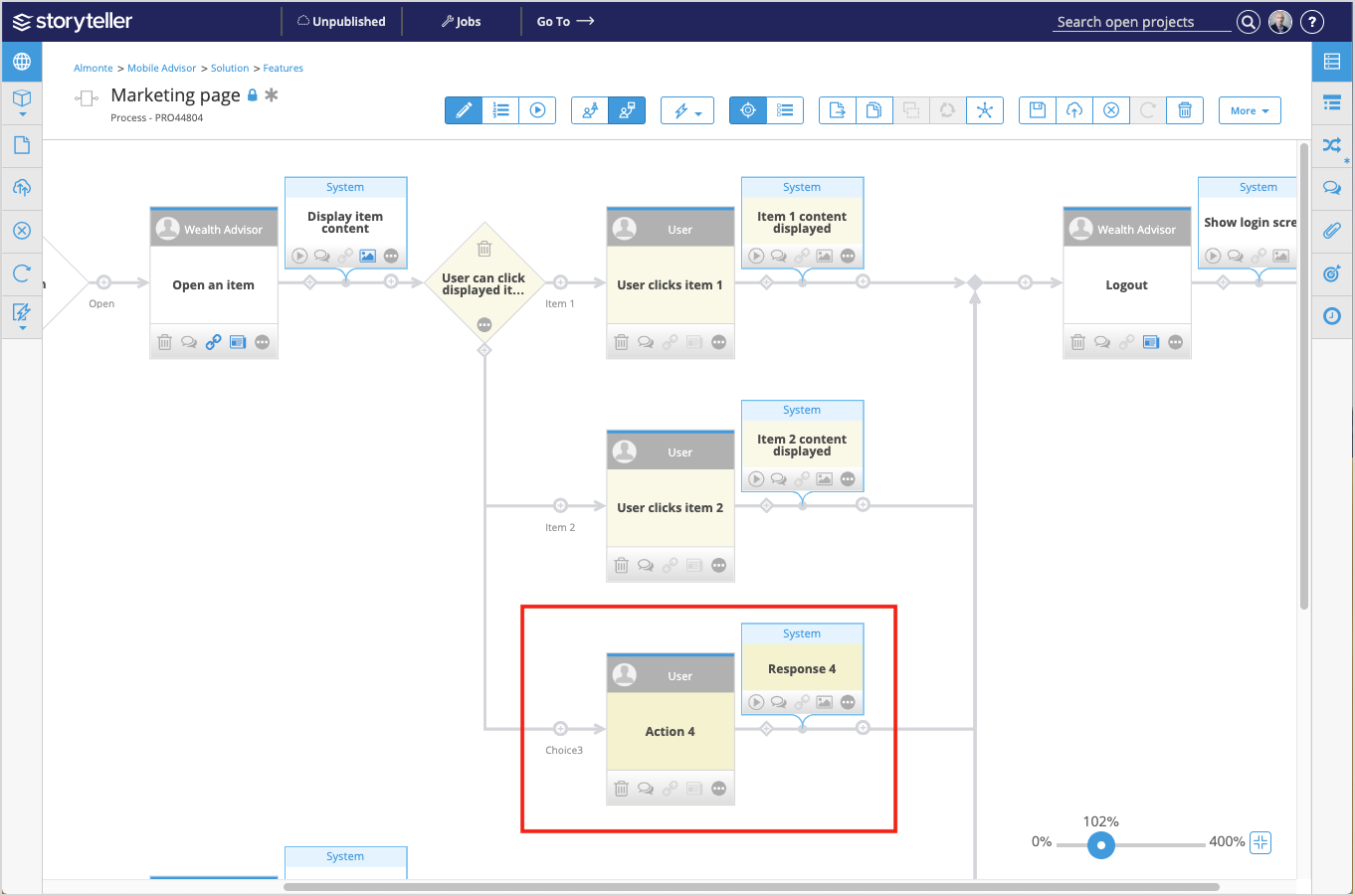
To add another choice to an existing set of choices, click the diamond add icon ( ) below the decision shape, then click Add Choice. You can also click the shape's the additional details icon (
 ) and select Add Choice.
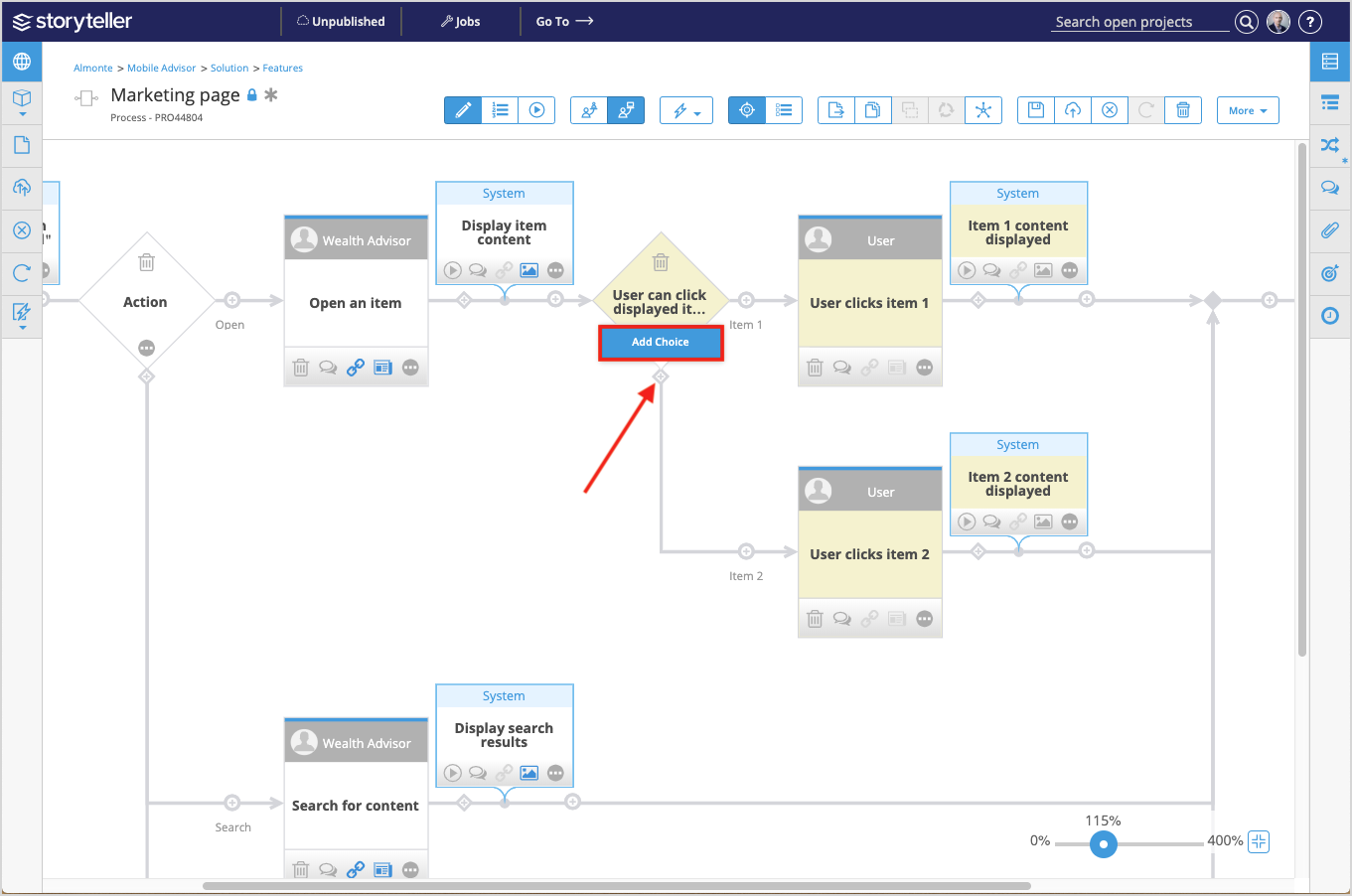
When a choice is added, and appropriate task or tasks are inserted, by default, they are connected to the next sequential location along the graph. See Add Details to Tasks and Decision Points in a Process for information on configuring endpoints for conditions.